
来源:大数据DT
本文约5400字,建议阅读10分钟
本文为你介绍数据分析时经常用到的折线图,可以用来呈现哪些数据关系?在数据分析过程中可以解决哪些问题?怎样用Python绘制折线图?

01 概述
折线图(Line)是将排列在工作表的列或行中的数据进行绘制后形成的线状图形。折线图可以显示随时间(根据常用比例设置)而变化的连续数据,非常适用于显示在相等时间间隔下数据的趋势。
在折线图中,数据是递增还是递减、增减的速率、增减的规律(周期性、螺旋性等)、峰值等特征都可以清晰地反映出来。所以,折线图常用来分析数据随时间的变化趋势,也可用来分析多组数据随时间变化的相互作用和相互影响。
例如,可用来分析某类商品或是某几类相关的商品随时间变化的销售情况,从而进一步预测未来的销售情况。在折线图中,一般水平轴(x轴)用来表示时间的推移,并且间隔相同;而垂直轴(y轴)代表不同时刻的数据的大小。如图0所示。
▲图0 折线图
02 实例
折线图代码示例如下所示。
- 代码示例①
1#数据
2x=[1,2,3,4,5,6,7]
3y=[6,7,2,4,5,10,4]
4#画布:坐标轴标签,画布大小
5p=figure(title="lineexample",x_axis_label='x',y_axis_label='y',width=400,height=400)
6#绘图:数据、图例、线宽
7p.line(x,y,legend="Temp.",line_width=2)#折线
8#显示
9show(p)
运行结果如图1所示。
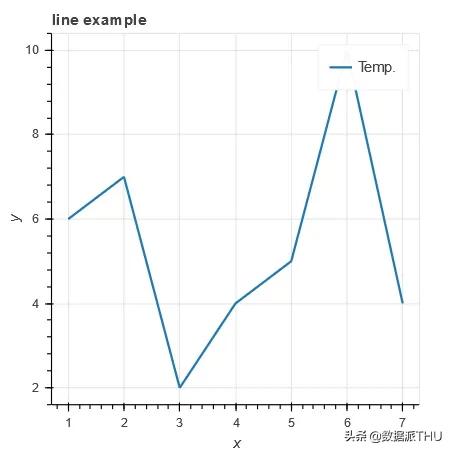
▲图1 代码示例①运行结果
代码示例①仍以最简单的方式绘制第一张折线图。line()方法的参数说明如下。
- p.line(x, y, **kwargs)参数说明
- x(:class:`~bokeh.core.properties.NumberSpec` ) : x坐标。
- y(:class:`~bokeh.core.properties.NumberSpec` ) : y坐标。
- line_alpha (:class:`~bokeh.core.properties.NumberSpec` ) : (default: 1.0) 轮廓线透明度。
- line_cap ( :class:`~bokeh.core.enums.LineCap` ) : (default: 'butt') 线端。
- line_color (:class:`~bokeh.core.properties.ColorSpec` ) : (default: 'black') 轮廓线颜色,默认:黑色。
- line_dash (:class:`~bokeh.core.properties.DashPattern` ) : (default: []) 虚线,类型可以是序列,也可以是字符串('solid', 'dashed', 'dotted', 'dotdash', 'dashdot')。
- line_dash_offset (:class:`~bokeh.core.properties.Int` ) : (default: 0) 虚线偏移。
- line_join (:class:`~bokeh.core.enums.LineJoin` ) : (default: 'bevel')。
- line_width (:class:`~bokeh.core.properties.NumberSpec` ) : (default: 1) 线宽。
- name (:class:`~bokeh.core.properties.String` ) : 图元名称。
- tags (:class:`~bokeh.core.properties.Any` ) :图元标签。
- alpha (float) : 一次性设置所有线条的透明度。
- color (Color) : 一次性设置所有线条的颜色。
- source (ColumnDataSource) : Bokeh特有数据格式(类似于Pandas Dataframe)。
- legend (str) : 图元的图例。
- x_range_name (str) : x轴范围名称。
- y_range_name (str) : y轴范围名称。
- level (Enum) : 图元渲染级别。
- 代码示例②
1p=figure(plot_width=400,plot_height=400)
2#线段x、y位置点均为列表;两段线的颜色、透明度、线宽
3p.multi_line([[1,3,2],[3,4,6,6]],[[2,1,4],[4,7,8,5]],
4color=["firebrick","navy"],alpha=[0.8,0.3],line_width=4)#多条折(曲)线
5show(p)
运行结果如图2所示。
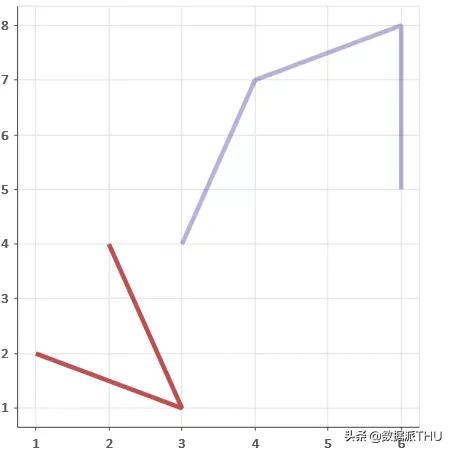
▲图2 代码示例②运行结果
代码示例②第3行使用multi_line()方法,实现一次性绘制两条折线,同时,在参数中定义不同折线的颜色。如果使用Pandas Dataframe,则可以同时绘制不同列的数据。multi_line()方法的参数说明如下。
- p.multi_line(xs, ys, **kwargs)参数说明
- xs (:class:`~bokeh.core.properties.NumberSpec` ) :x坐标,列表。
- ys (:class:`~bokeh.core.properties.NumberSpec` ) :y坐标,列表。
其他参数同line。
- 代码示例③
 1#准备数据
 2x=[0.1,0.5,1.0,1.5,2.0,2.5,3.0]
 3y0=[i**2foriinx]
 4y1=[10**iforiinx]
 5y2=[10**(i**2)foriinx]
 6#创建画布
 7p=figure(
 8tools="pan,box_zoom,reset,save",
 9y_axis_type="log",title="logaxisexample",
10x_axis_label='sections',y_axis_label='particles',
11width=700,height=350)
12#增加图层,绘图
13p.line(x,x,legend="y=x")
14p.circle(x,x,legend="y=x",fill_color="white",size=8)
15p.line(x,y0,legend="y=x^2",line_width=3)
16p.line(x,y1,legend="y=10^x",line_color="red")
17p.circle(x,y1,legend="y=10^x",fill_color="red",line_color="red",size=6)
18p.line(x,y2,legend="y=10^x^2",line_color="orange",line_dash="44")
19#显示
20show(p)
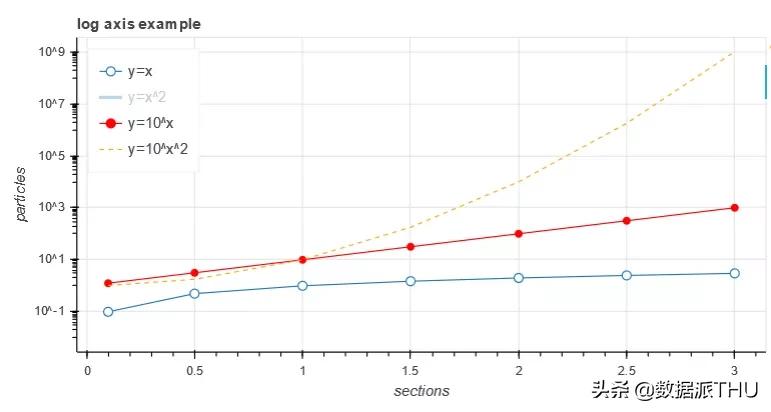
运行结果如图3所示。

▲图3 代码示例③运行结果
代码示例③第13、15、16行使用line()方法逐一绘制折线,该方法的优点是基本数据清晰,可在不同线条绘制过程中直接定义图例。读者也可以使用multi_line()方法一次性绘制三条折线,然后再绘制折线上的数据点。同样,既可以在函数中预定义图例,也可以用Lengend方法单独进行定义,在后面会对图例进行详细说明。
- 代码示例④
1p.legend.location="top_left"#图例位于左上
2p.legend.click_policy="hide"#点击图例显示、隐藏图形
3show(p)#自行测试效果
运行结果如图4所示。
▲图4 代码示例④运行结果
代码示例④在代码示例③的基础上增加了图例的位置、显示或隐藏图形属性;通过点击图例,可实现图形的显示或隐藏,当折线数目较多或者颜色干扰阅读时,可以通过该方法实现对某一条折线数据的重点关注。这种通过图例、工具条、控件实现数据人机交互的可视化方式,正是Bokeh得以在GitHub火热的原因,建议在工作实践中予以借鉴。
- 代码示例⑤
 1#数据
 2importnumpyasnp
 3x=np.linspace(0,4*np.pi,200)
 4y1=np.sin(x)
 5y2=np.cos(x)
 6#将y1+—0.9范围外的数据设置为无穷大
 7y1[y1>+0.9]=+np.inf
 8y1[y1<-0.9]=-np.inf
 9#将y2+—0.9范围外的数据采用掩码数组或NAN值替换
10y2=np.ma.masked_array(y2,y2<-0.9)
11y2[y2>0.9]=np.nan
12#图层
13p=figure(title="lineswithmissing/infvalues")
14#绘图x,y1
15p.line(x,y1,color="firebrick",line_width=2)#砖红色
16#绘图x,y2
17p.line(x,y2,color="blue",line_width=2)#蓝色
18show(p)
运行结果如图5所示。

▲图5 代码示例⑤运行结果
代码示例⑤第15、16行使用line()方法绘制两组不同颜色的曲线。
- 代码示例⑥
 1importnumpyasnp
 2fromcollectionsimportdefaultdict
 3fromscipy.statsimportnorm
 4frombokeh.modelsimportHoverTool,TapTool
 5frombokeh.layoutsimportgridplot
 6frombokeh.palettesimportViridis6
 7#数据
 8mass_spec=defaultdict(list)#defaultdict类的初始化函数接受一个list类型作为参数,当所访问的键不存在时,可以实例化一个值作为默认值
 9RT_x=np.linspace(118,123,num=50)
10norm_dist=norm(loc=120.4).pdf(RT_x)# loc均值;pdf输入x,返回概率密度函数
11
12#生成6组高斯分布的曲线
13forscale,mzin[(1.0,83),(0.9,55),(0.6,98),(0.4,43),(0.2,39),(0.12,29)]:
14mass_spec["RT"].append(RT_x)
15mass_spec["RT_intensity"].append(norm_dist*scale)
16mass_spec["MZ"].append([mz,mz])
17mass_spec["MZ_intensity"].append([0,scale])
18mass_spec['MZ_tip'].append(mz)
19mass_spec['Intensity_tip'].append(scale)
20#线条颜色
21mass_spec['color']=Viridis6
22#画布参数
23figure_opts=dict(plot_width=450,plot_height=300)
24hover_opts=dict(
25tooltips=[('MZ','@MZ_tip'),('RelIntensity','@Intensity_tip')],#鼠标悬停在曲线上动态显示数据
26show_arrow=False,
27line_policy='next'
28)
29line_opts=dict(
30line_width=5,line_color='color',line_alpha=0.6,
31hover_line_color='color',hover_line_alpha=1.0,
32source=mass_spec#线条数据
33)
34#画布1
35rt_plot=figure(tools=[HoverTool(**hover_opts),TapTool()],**figure_opts)
36#同时绘制多条折(曲)线
37rt_plot.multi_line(xs='RT',ys='RT_intensity',legend="Intensity_tip",**line_opts)
38#x,y轴标签
39rt_plot.xaxis.axis_label="RetentionTime(sec)"
40rt_plot.yaxis.axis_label="Intensity"
41#画布2
42mz_plot=figure(tools=[HoverTool(**hover_opts),TapTool()],**figure_opts)
43mz_plot.multi_line(xs='MZ',ys='MZ_intensity',legend="Intensity_tip",**line_opts)
44mz_plot.legend.location="top_center"
45mz_plot.xaxis.axis_label="MZ"
46mz_plot.yaxis.axis_label="Intensity"
47#显示
48show(gridplot([[rt_plot,mz_plot]]))
运行结果如图6所示。

▲图6 代码示例⑥运行结果
代码示例⑥第19行中,生成绘图数据时,同时生成图例名称列表;第37、43行使用multi_line()方法一次性绘制6条曲线,并预定义图例。
- 代码示例⑦
 1frombokeh.modelsimportColumnDataSource,NumeralTickFormatter,SingleIntervalTicker
 2frombokeh.sampledata.us_marriages_divorcesimportdata
 3#数据
 4data=data.interpolate(method='linear',axis=0).ffill().bfill()
 5source=ColumnDataSource(data=dict(
 6year=data.Year.values,
 7marriages=data.Marriages_per_1000.values,
 8divorces=data.Divorces_per_1000.values,
 9))
10#工具条
11TOOLS='pan,wheel_zoom,box_zoom,reset,save'
12#画布
13p=figure(tools=TOOLS,plot_width=800,plot_height=500,
14tooltips='<fontface="Arial"size="3">@$name{0.0}$nameper1,000peoplein@year</font>')
15#其他自定义属性
16p.hover.mode='vline'
17p.xaxis.ticker=SingleIntervalTicker(interval=10,num_minor_ticks=0)
18p.yaxis.formatter=NumeralTickFormatter(format='0.0a')
19p.yaxis.axis_label='#per1,000people'
20p.title.text='144yearsofmarriageanddivorceintheU.S.'
21#绘图
22p.line('year','marriages',color='#1f77b4',line_width=3,source=source,name="marriages")
23p.line('year','divorces',color='#ff7f0e',line_width=3,source=source,name="divorces")
24#显示
25show(p)
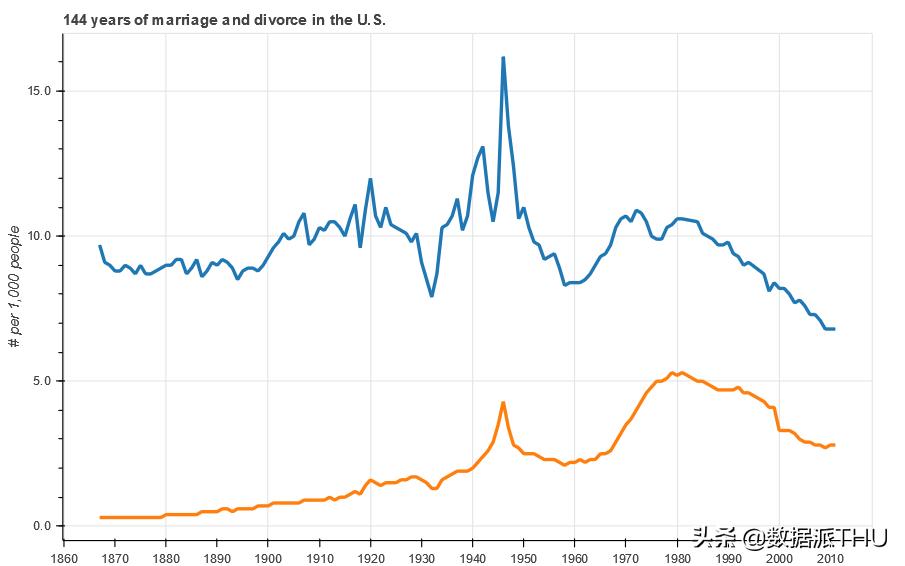
运行结果如图7所示。
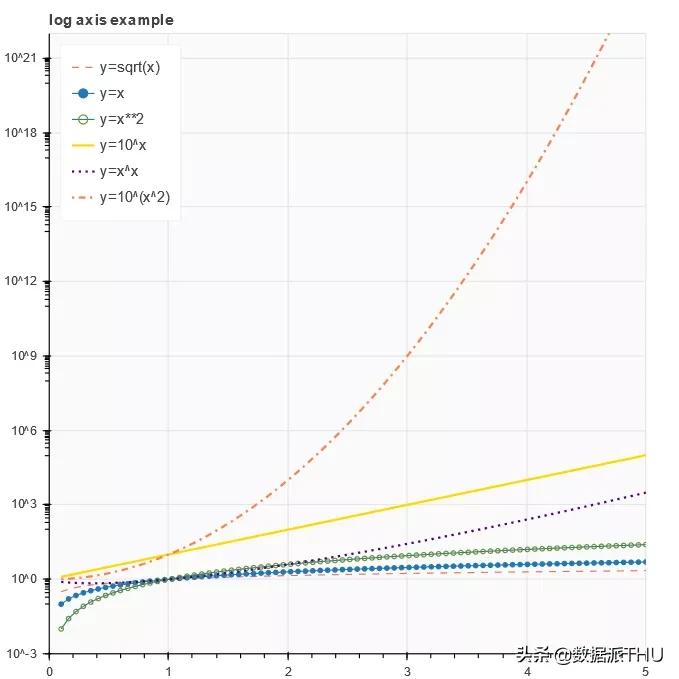
▲图7 代码示例⑦运行结果
代码示例⑦与代码示例③相似,第10、19、21行对曲线的属性进行自定义,注意虚线的几种形式('solid', 'dashed', 'dotted', 'dotdash', 'dashdot'),读者可以自行替换测试。
- 代码示例⑧
 1frombokeh.modelsimportColumnDataSource,NumeralTickFormatter,SingleIntervalTicker
 2frombokeh.sampledata.us_marriages_divorcesimportdata
 3#数据
 4data=data.interpolate(method='linear',axis=0).ffill().bfill()
 5source=ColumnDataSource(data=dict(
 6year=data.Year.values,
 7marriages=data.Marriages_per_1000.values,
 8divorces=data.Divorces_per_1000.values,
 9))
10#工具条
11TOOLS='pan,wheel_zoom,box_zoom,reset,save'
12#画布
13p=figure(tools=TOOLS,plot_width=800,plot_height=500,
14tooltips='<fontface="Arial"size="3">@$name{0.0}$nameper1,000peoplein@year</font>')
15#其他自定义属性
16p.hover.mode='vline'
17p.xaxis.ticker=SingleIntervalTicker(interval=10,num_minor_ticks=0)
18p.yaxis.formatter=NumeralTickFormatter(format='0.0a')
19p.yaxis.axis_label='#per1,000people'
20p.title.text='144yearsofmarriageanddivorceintheU.S.'
21#绘图
22p.line('year','marriages',color='#1f77b4',line_width=3,source=source,name="marriages")
23p.line('year','divorces',color='#ff7f0e',line_width=3,source=source,name="divorces")
24#显示
25show(p)
运行结果如图8所示。
▲图8 代码示例⑧运行结果
代码示例⑧第22、23行通过line()方法绘制两条曲线,严格上讲这两条曲线并不是Bokeh时间序列的标准绘制方法。第17行定义了x轴刻度的间隔以及中间刻度数,读者可以尝试将num_minor_ticks=10的显示效果与图8进行对比;第18行定义了y轴的数据显示格式。
- 代码示例⑨
 1importnumpyasnp
 2fromscipy.integrateimportodeint
 3#数据
 4sigma=10
 5rho=28
 6beta=8.0/3
 7theta=3*np.pi/4
 8#洛伦兹空间向量点生成函数
 9deflorenz(xyz,t):
10x,y,z=xyz
11x_dot=sigma*(y-x)
12y_dot=x*rho-x*z-y
13z_dot=x*y-beta*z
14return[x_dot,y_dot,z_dot]
15initial=(-10,-7,35)
16t=np.arange(0,100,0.006)
17solution=odeint(lorenz,initial,t)
18x=solution[:,0]
19y=solution[:,1]
20z=solution[:,2]
21xprime=np.cos(theta)*x-np.sin(theta)*y
22#调色
23colors=["#C6DBEF","#9ECAE1","#6BAED6","#4292C6","#2171B5","#08519C","#08306B",]
24#画布
25p=figure(title="Lorenzattractorexample",background_fill_color="#fafafa")
26#绘图洛伦兹空间向量
27p.multi_line(np.array_split(xprime,7),np.array_split(z,7),
28line_color=colors,line_alpha=0.8,line_width=1.5)
29#显示
30show(p)
运行结果如图9所示。
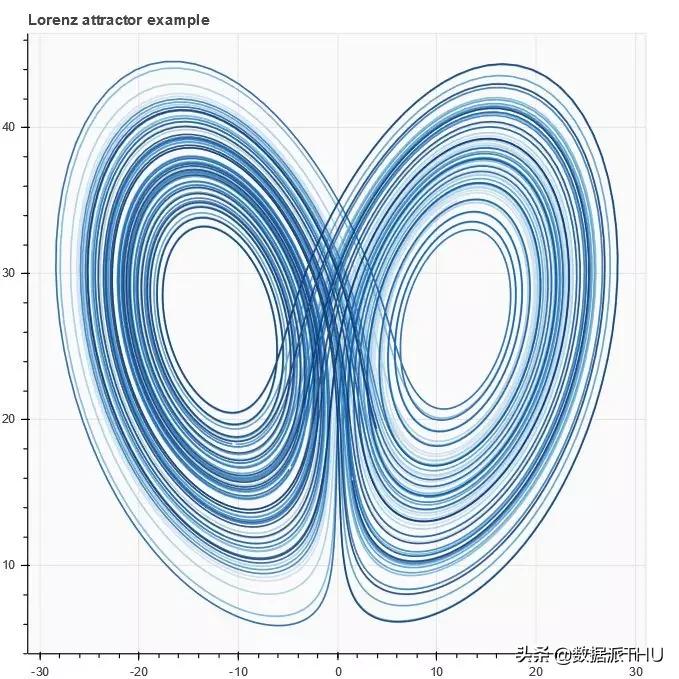
▲图9 代码示例⑨运行结果
代码示例⑨使用multi_line()方法在二维空间展示洛伦兹空间向量,示例中的数据生成稍微有点复杂,可以直观感受可视化之下的数据之美,有兴趣的读者可以深入了解。
- 代码示例⑩
 1importnumpyasnp
 2frombokeh.layoutsimportrow
 3frombokeh.palettesimportViridis3
 4frombokeh.modelsimportCheckboxGroup,CustomJS
 5#数据
 6x=np.linspace(0,4*np.pi,100)
 7#画布
 8p=figure()
 9#折线属性
10props=dict(line_width=4,line_alpha=0.7)
11#绘图
12l0=p.line(x,np.sin(x),color=Viridis3[0],legend="Line0",**props)
13l1=p.line(x,4*np.cos(x),color=Viridis3[1],legend="Line1",**props)
14l2=p.line(x,np.tan(x),color=Viridis3[2],legend="Line2",**props)
15#复选框激活显示
16checkbox=CheckboxGroup(labels=["Line0","Line1","Line2"],
17active=[0,1,2],width=100)
18checkbox.callback=CustomJS(args=dict(l0=l0,l1=l1,l2=l2,checkbox=checkbox),code="""
19l0.visible=0incheckbox.active;
20l1.visible=1incheckbox.active;
21l2.visible=2incheckbox.active;
22""")
23#添加图层
24layout=row(checkbox,p)
25#显示
26show(layout)
运行结果如图10所示。
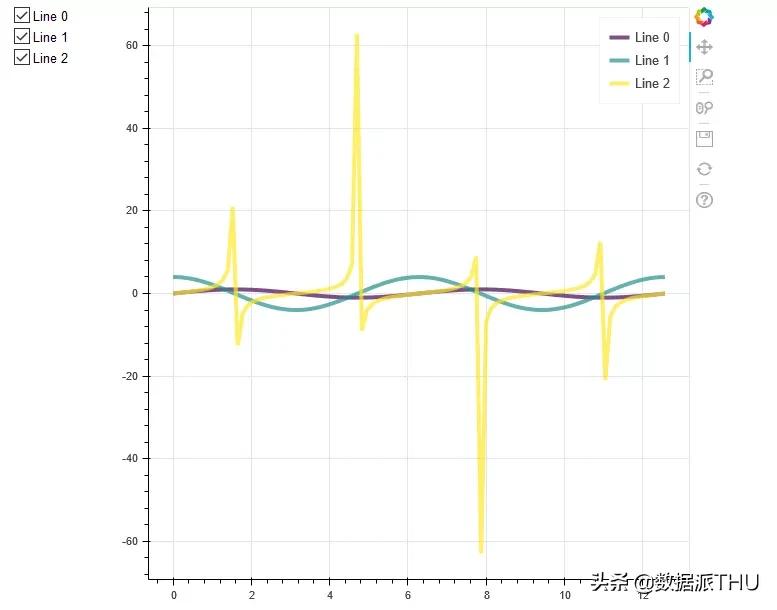
▲图10 代码示例⑩运行结果
代码示例⑩增加了Bokeh控件复选框,第12、13、14行使用line()方法绘制3条曲线;第16行定义复选框,并在18行定义回调函数,通过该回调函数控制3条曲线的可视状态;第24行将复选框、绘图并在一行进行显示。
- 代码示例⑪
 1frombokeh.modelsimportTapTool,CustomJS,ColumnDataSource
 2#数据
 3t=np.linspace(0,0.1,100)
 4#回调函数
 5code="""
 6//cb_data={geometries:...,source:...}
 7constview=cb_data.source.selected.get_view();
 8constdata=source.data;
 9if(view){
10constcolor=view.model.line_color;
11data['text']=['Selectedthe'+color+'line'];
12data['text_color']=[color];
13source.change.emit();
14}
15"""
16source=ColumnDataSource(data=dict(text=['Nolineselected'],text_color=['black']))
17#画布
18p=figure(width=600,height=500)
19#绘图
20l1=p.line(t,100*np.sin(t*50),color='goldenrod',line_width=30)
21l2=p.line(t,100*np.sin(t*50+1),color='lightcoral',line_width=20)
22l3=p.line(t,100*np.sin(t*50+2),color='royalblue',line_width=10)
23#文本,注意选择线条时候的文字变化
24p.text(0,-100,text_color='text_color',source=source)
25#调用回调函数进行动态交互
26p.add_tools(TapTool(callback=CustomJS(code=code,args=dict(source=source))))
27#显示
28show(p)
运行结果如图11所示。
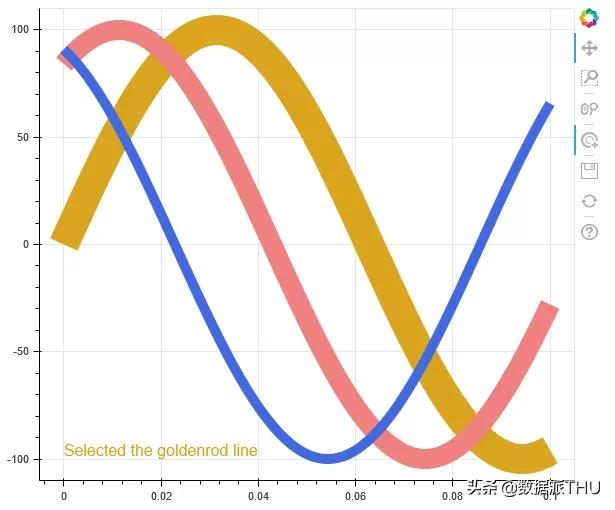
▲图11 代码示例⑪运行结果
代码示例⑪增加点击曲线的交互效果,第20、21、22行使用line()方法绘制3条曲线;第26行定义曲线再次被点击时的效果:图11中左下方会动态显示当前选中的是哪条颜色的曲线。
- 代码示例⑫
 1importnumpyasnp
 2frombokeh.modelsimportColumnDataSource,Plot,LinearAxis,Grid
 3frombokeh.models.glyphsimportLine
 4#数据
 5N=30
 6x=np.linspace(-2,2,N)
 7y=x**2
 8source=ColumnDataSource(dict(x=x,y=y))
 9#画布
10plot=Plot(
11title=None,plot_width=300,plot_height=300,
12#min_border=0,
13#toolbar_location=None
14)
15#绘图
16glyph=Line(x="x",y="y",line_color="#f46d43",line_width=6,line_alpha=0.6)
17plot.add_glyph(source,glyph)
18#x轴单独设置(默认)
19xaxis=LinearAxis()
20plot.add_layout(xaxis,'below')
21#y轴单独设置(默认)
22yaxis=LinearAxis()
23plot.add_layout(yaxis,'left')
24#坐标轴刻度
25plot.add_layout(Grid(dimension=0,ticker=xaxis.ticker))
26plot.add_layout(Grid(dimension=1,ticker=yaxis.ticker))
27#显示
28show(plot)
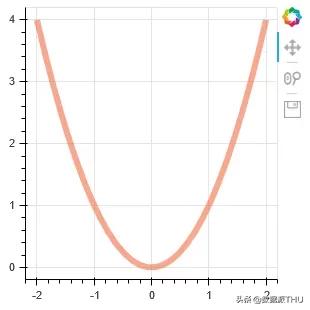
运行结果如图12所示。
▲图12 代码示例⑫运行结果
代码示例⑫使用models接口进行曲线绘制,注意第10、17、20行的绘制方法,这种绘图方式在实践中基本很少用到,仅作了解。
关于作者:
屈希峰,资深Python工程师,Bokeh领域的实践者和布道者,对Bokeh有深入的研究。擅长Flask、MongoDB、Sklearn等技术,实践经验丰富。知乎多个专栏(Python中文社区、Python程序员、大数据分析挖掘)作者,专栏累计关注用户十余万人。
本文摘编自《Python数据可视化:基于Bokeh的可视化绘图》,经出版方授权发布。
编辑:于腾凯
校对:吕艳琴
—完—
关注清华-青岛数据科学研究院官方微信公众平台“ THU数据派 ”及姊妹号“ 数据派THU ”获取更多讲座福利及优质内容。