今日分享(三):“word系列实用推荐(1)-----如何制作封面下划线”

亲爱的您,这里是LearningYard新学苑
今天小编为大家带来今日分享(三)
欢迎您的访问!
Share interests, spread happiness,
increase knowledge, and leave good news!
Dear you, this is the new LearningYard Academy
Today, the editor brings you
"Common Algorithms for Machine Learning (16)"
Welcome your visit!
背景
在许多场景中我们都需要用到封面信息,封面信息上包含了我们的个人信息以及想要展现的东西,那么制作一个完整、简洁的封面就十分有必要了。想要看起来很完整,对于文字的排版和疏密程度也是很重要的,通常情况下,文字下面加有下划线会更清晰,那如何在文字下面加下划线,又同时保证下划线不移动,每根下划线长度一致呢?我们通常会用到表格的形式,在表格的基础上通过一系列的修改就能得到我们想要的效果啦!接下来就由我教给大家如何制作吧!(以office2019版为例)
In many scenarios we need to use the cover information, the cover information contains our personal information and what we want to show, then it is necessary to make a complete and concise cover. Want to look very complete, for the text typesetting and density is also very important, usually, the text under the underlining will be clearer, then how to add an underline under the text, but also to ensure that the underline does not move, each underline length is consistent? We usually use the form of a table, and on the basis of the table, we can get the effect we want through a series of modifications! I'll teach you how to make it! (Take office 2019 as an example)
1
直接输入完整信息
字体:三号、固定值,20磅
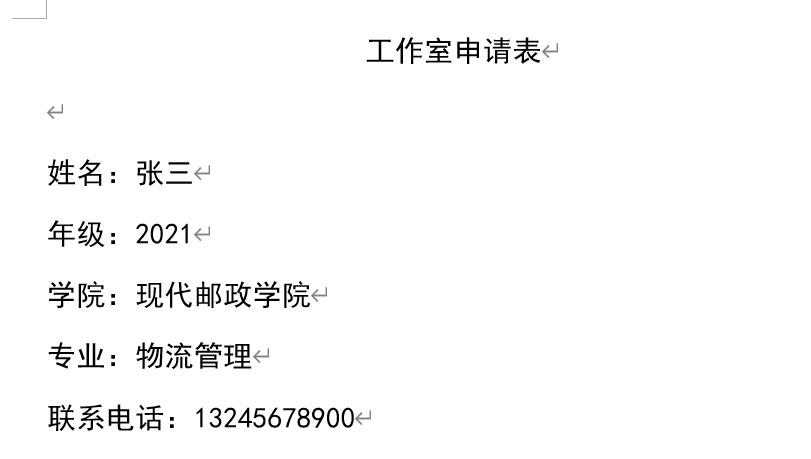
● 先输入完整信息,将所有封面信息全部输入
Enter the full information first, and enter all the cover information
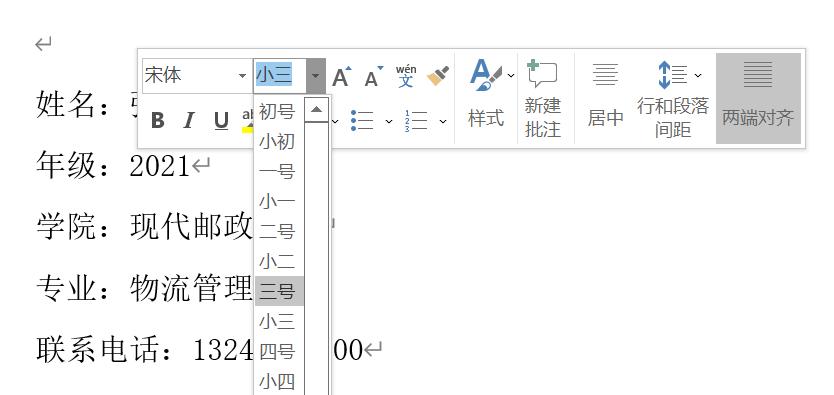
● 将字体调成 三号
Set the font to number three
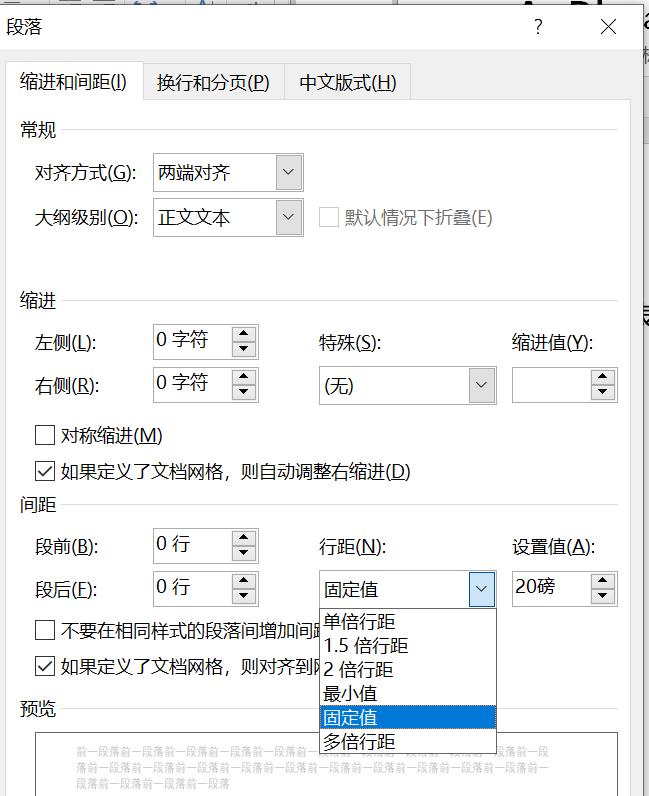
● 在段落的选项中,找到行距下面所对应的 固定值 ,固定值调为 20磅
In the paragraph options, find the fixed value below the line spacing, which is set to 20 points
2
插入表格,将文本转换为表格形式

● 首先在文字于符号之间输入Tab空位
Start by entering a Tab space between the text and the symbol
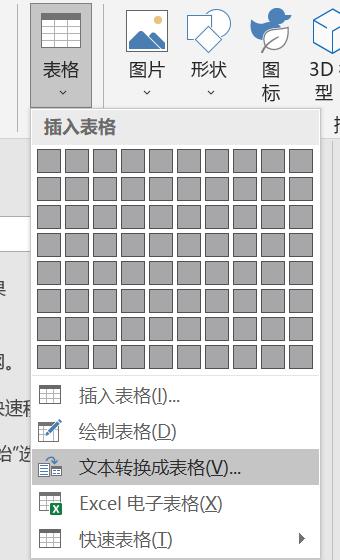
● 在表格选项中直接选择文本转换为表格,点击确定
In the Table options, directly select Convert text to table and click OK
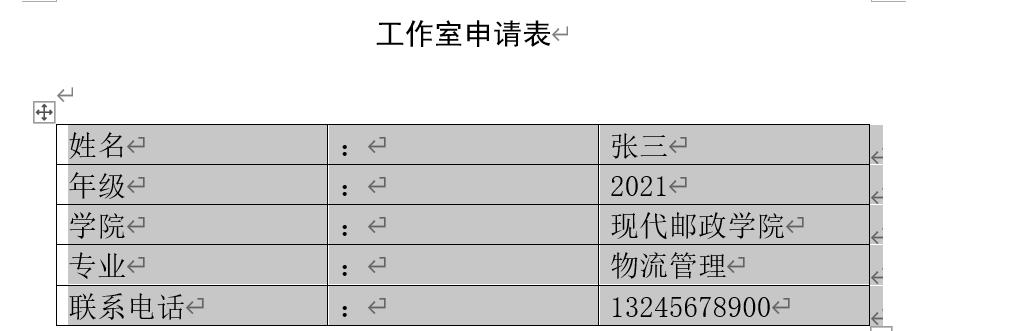
● 表格建立完成
The form is finished
3
设置各项表格属性
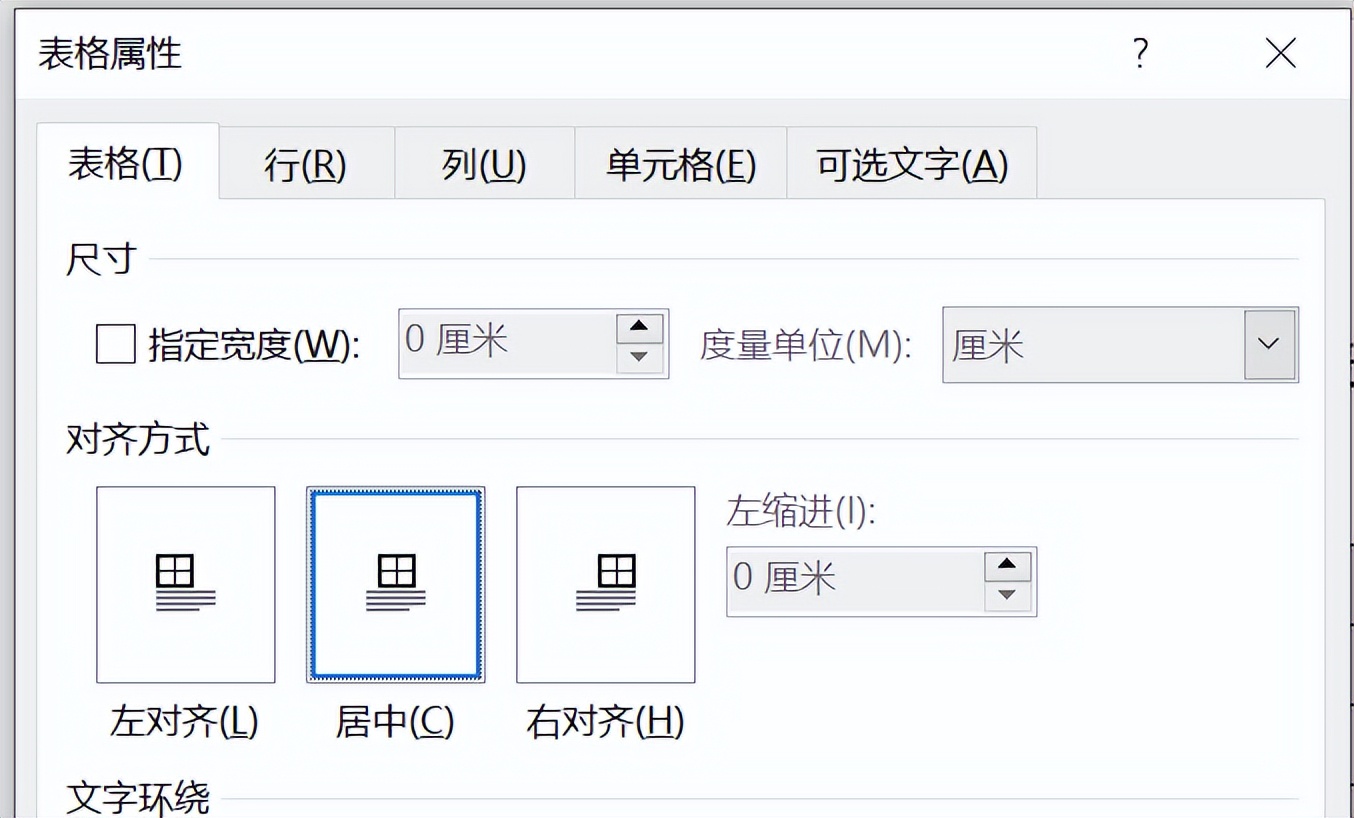
● 在布局中找到属性,选择居中
Find the property in layout and select Center
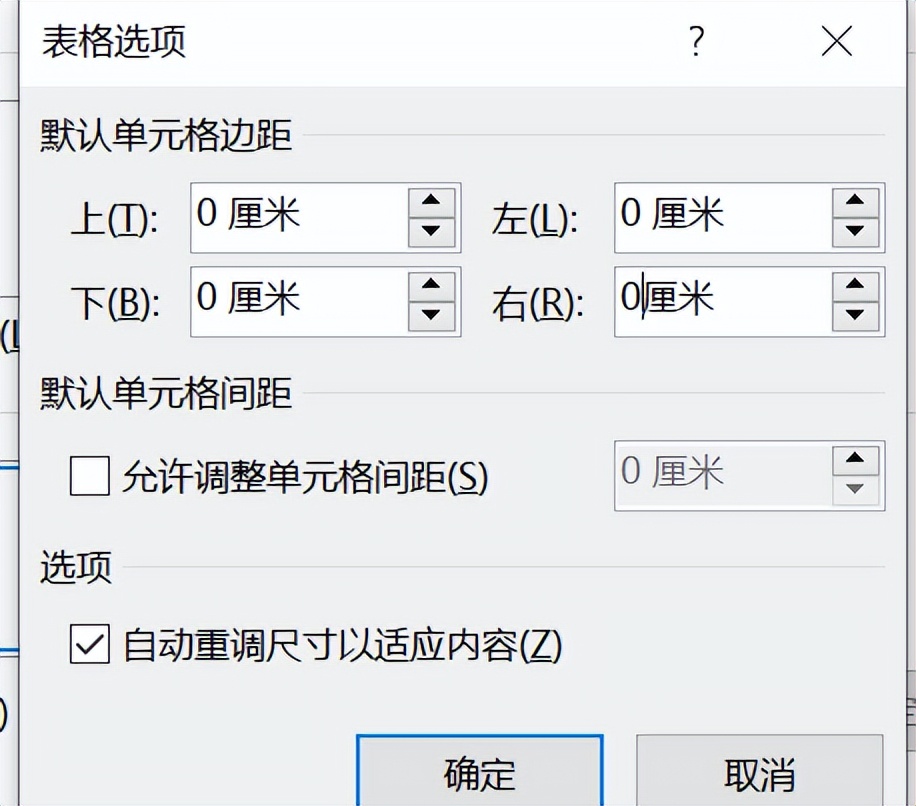
● 确定后,再次点击属性,找到右下角的选项,将所有数值改为0厘米
Once you are sure, click Properties again, find the option in the lower right corner, and change all values to 0 cm
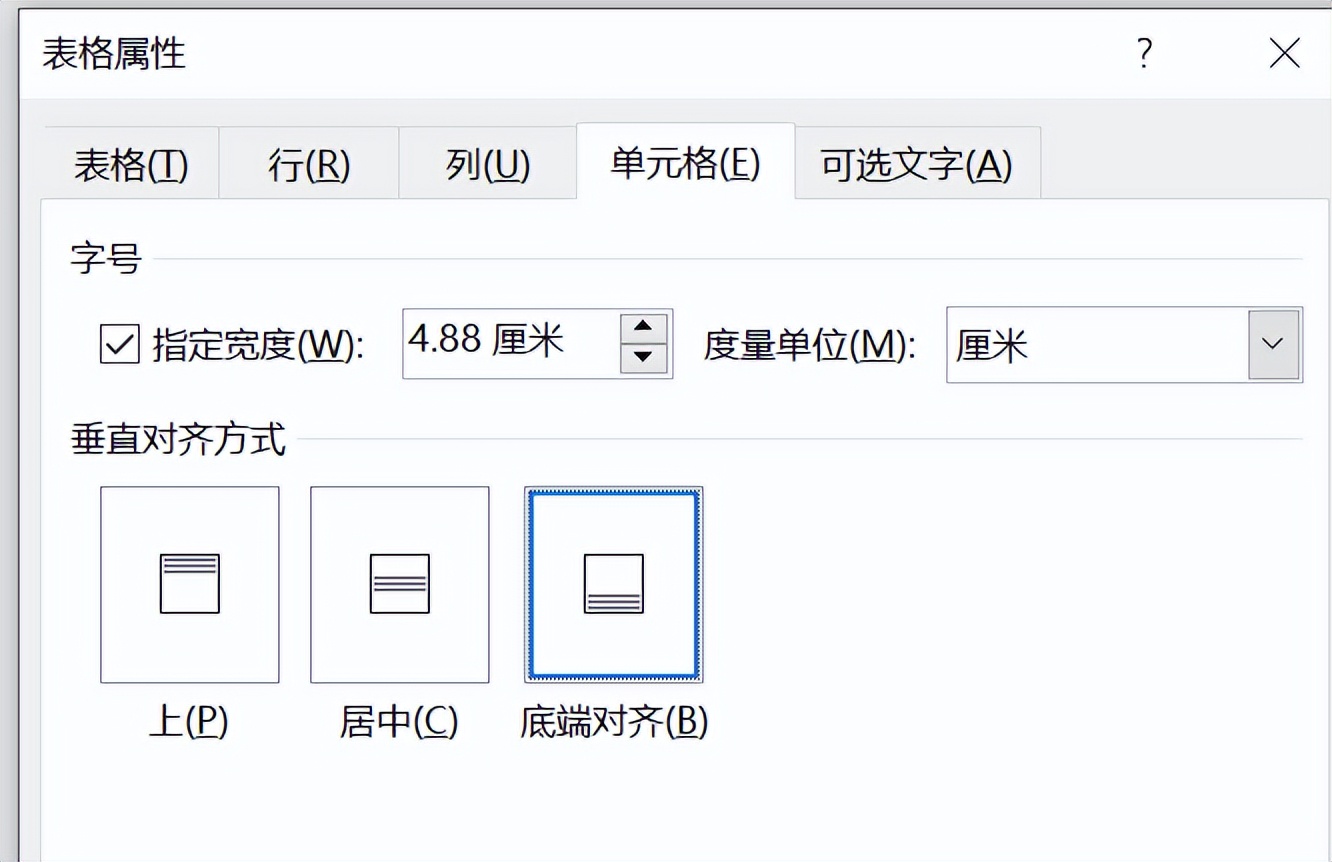
● 确定后再次点击属性,在最上方找到单元格,选择底端对齐
Once OK, click Properties again, find the cell at the top, and select Bottom Alignment
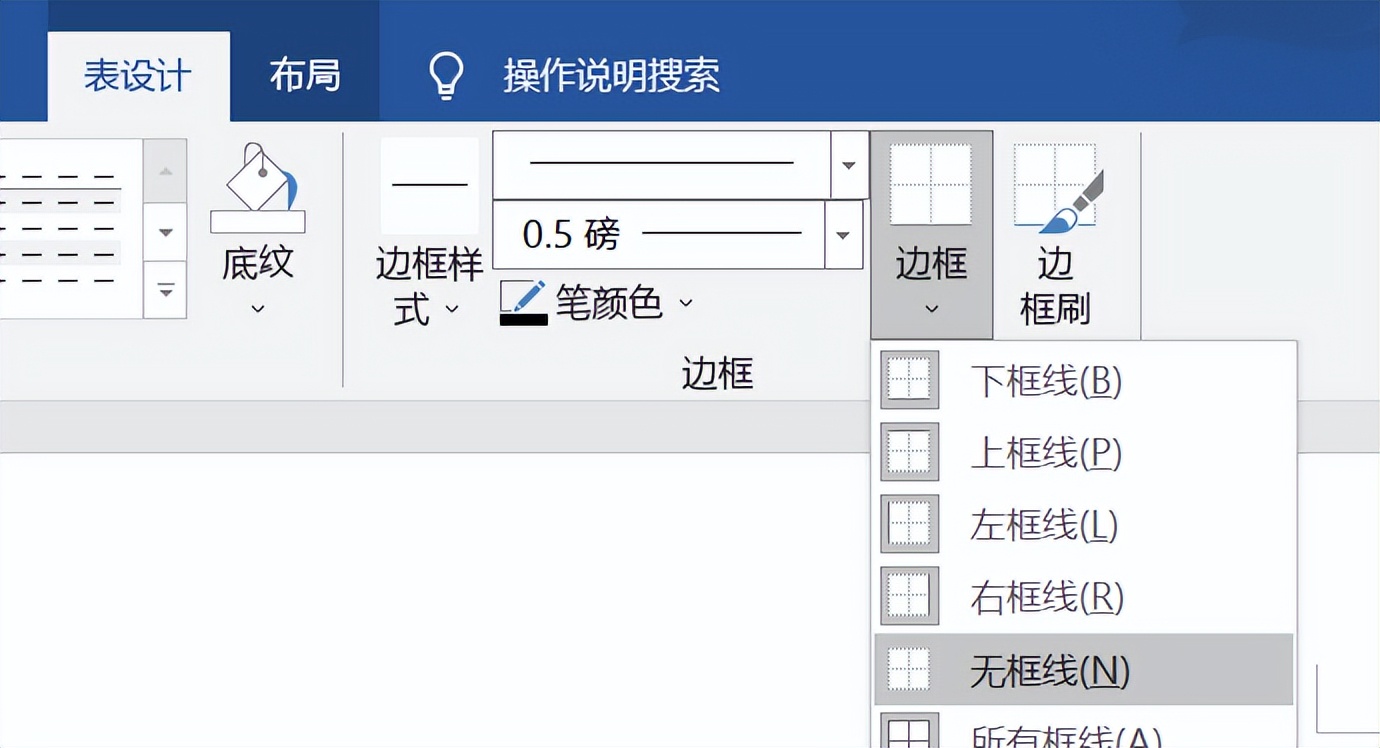
● 设置好后,在菜单栏中找到设计,点击边框,选择无边框
Once set, find the design in the menu bar, click Border, and select Borderless
4
设计各列对齐方式、框线
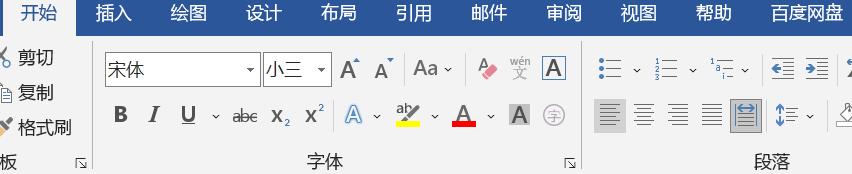
●选择最开始的一列,在开始中找段落,选择分散对齐
Select the first column, find the paragraph in the beginning, and select Scatter Alignment
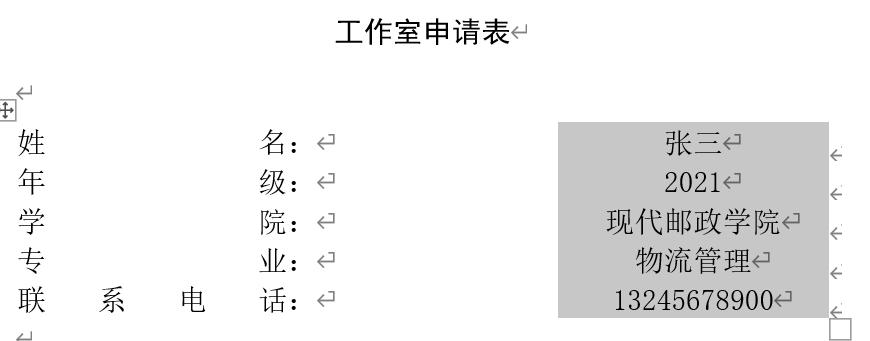
● 填有自己信息的那一列选择居中对齐
The column with your own information is selected to align in the center
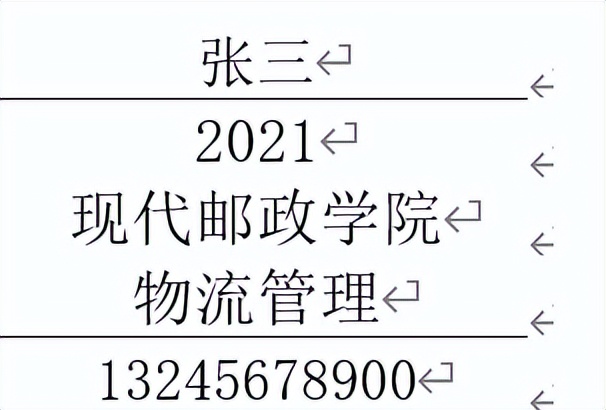
● 对齐后,给右边一侧的信息加上下框线,方法与前面选择无边框一致,需要注意的是, 下边框必须一个一个的加, 不能同时进行,否则下划线会不完全,如上图。
After alignment, add the next border to the information on the right side, the method is consistent with the previous selection of no border, it should be noted that the lower border must be added one by one, can not be carried out at the same time, otherwise the underline will not be complete, as shown above.
5
调整列宽和行高
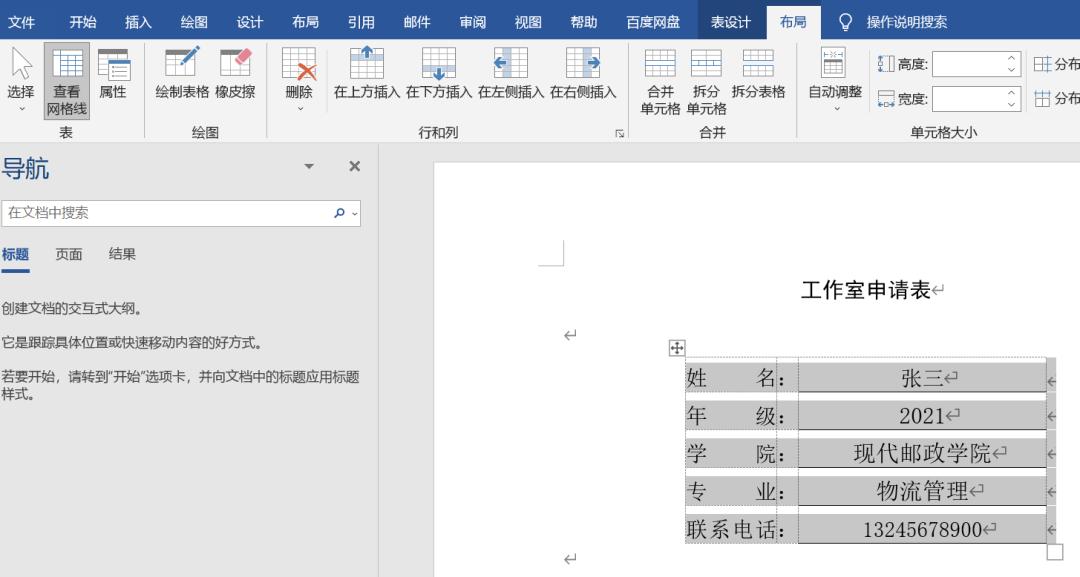
● 首先,在布局找到,查看网格线,是我们能够更加清楚的看到行列距离
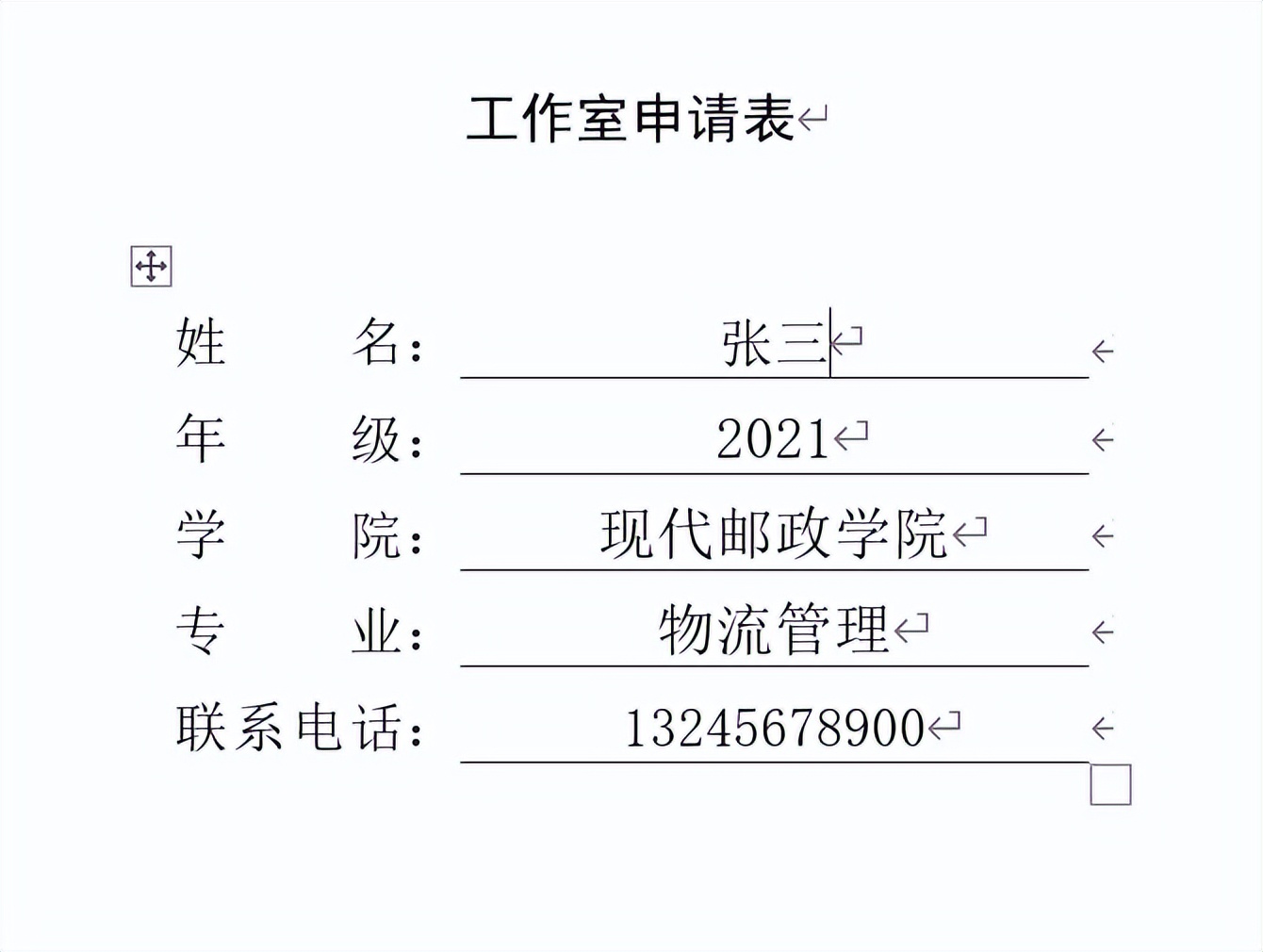
● 接着,我们可以自行调节每一列的宽度和每一行的高度,调整完毕后就可以制作完成啦!
今天的分享就到这里了。
如果您对今天的文章有什么独特的想法,
欢迎评论留言,让我们相约明天,祝您今天过得开心快乐!
That's it for today's sharing. If you have any unique ideas for today's article, please leave a comment, let us meet tomorrow, I wish you a happy day!