simaticstep7v7.5安装 (simaticstep7v5.5sp3安装流程)

关注“PLC发烧友”,一起涨知识!

1 安装要求

1. 只能在win10系统上安装,win7和XP系统是不能安装的,win10系统建议安装win10专业版的。

2. 电脑配置,250G硬盘空间,4G运行内存,CPU至少2.1HZ频率。

2 安装过程

1. 软件*载下**:可以到技成*载下**中心或者技成学员论坛*载下**。

simaticstep7v5.6应用教程,simaticstep7v5.6中文版安装方法

2. *载下**完毕后是一个压缩包,要解压文件。

simaticstep7v5.6应用教程,simaticstep7v5.6中文版安装方法

simaticstep7v5.6应用教程,simaticstep7v5.6中文版安装方法

3. 解压完毕后是这样子的,如下图所示:

simaticstep7v5.6应用教程,simaticstep7v5.6中文版安装方法

4. 打开解压后的文件夹,如下图所示:

simaticstep7v5.6应用教程,simaticstep7v5.6中文版安装方法

5. 鼠标右击以管理员身份运行,进行安装。

simaticstep7v5.6应用教程,simaticstep7v5.6中文版安装方法

6. 安装步骤一(选择简体中文,然后点击下一步)

simaticstep7v5.6应用教程,simaticstep7v5.6中文版安装方法

7. 安装步骤二(选择我接受,然后下一步)

simaticstep7v5.6应用教程,simaticstep7v5.6中文版安装方法

8. 安装步骤三(安装选项全选打勾,然后点击下一步)

simaticstep7v5.6应用教程,simaticstep7v5.6中文版安装方法

9. 安装步骤四(点击我接受,选择下一步)

simaticstep7v5.6应用教程,simaticstep7v5.6中文版安装方法

10. 安装步骤五(直接点击安装)

simaticstep7v5.6应用教程,simaticstep7v5.6中文版安装方法

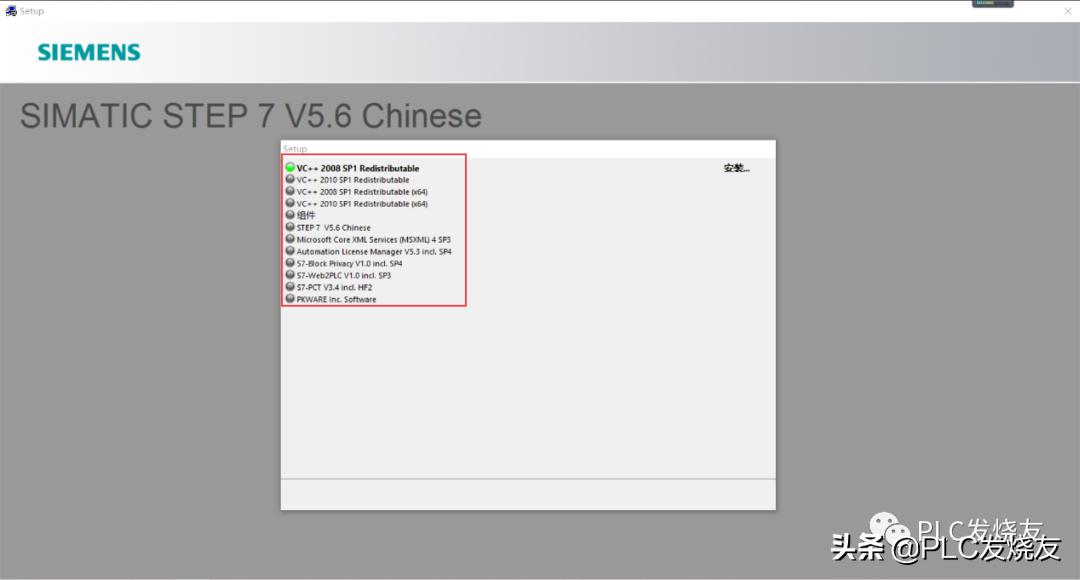
11. 安装步骤六(全选的安装项目,正在安装)

simaticstep7v5.6应用教程,simaticstep7v5.6中文版安装方法

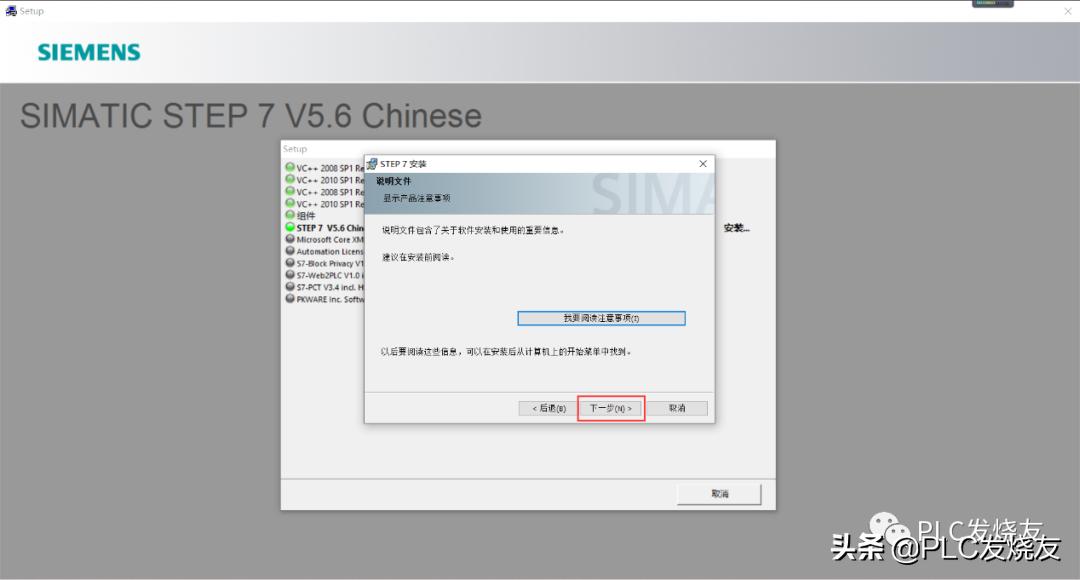
12. 安装步骤 七(直接点击下一步)

simaticstep7v5.6应用教程,simaticstep7v5.6中文版安装方法

13. 安装步骤八(直接点击下一步)

simaticstep7v5.6应用教程,simaticstep7v5.6中文版安装方法

14. 安装步骤 九(用户名和组织随便填写一个用户名,然后点击下一步)

simaticstep7v5.6应用教程,simaticstep7v5.6中文版安装方法

15. 安装步骤 十(安装类型选择(典型)安装路径默认系统盘,也就是C盘)

simaticstep7v5.6应用教程,simaticstep7v5.6中文版安装方法

16. 安装步骤十一(选择简体中文,点击下一步)

simaticstep7v5.6应用教程,simaticstep7v5.6中文版安装方法

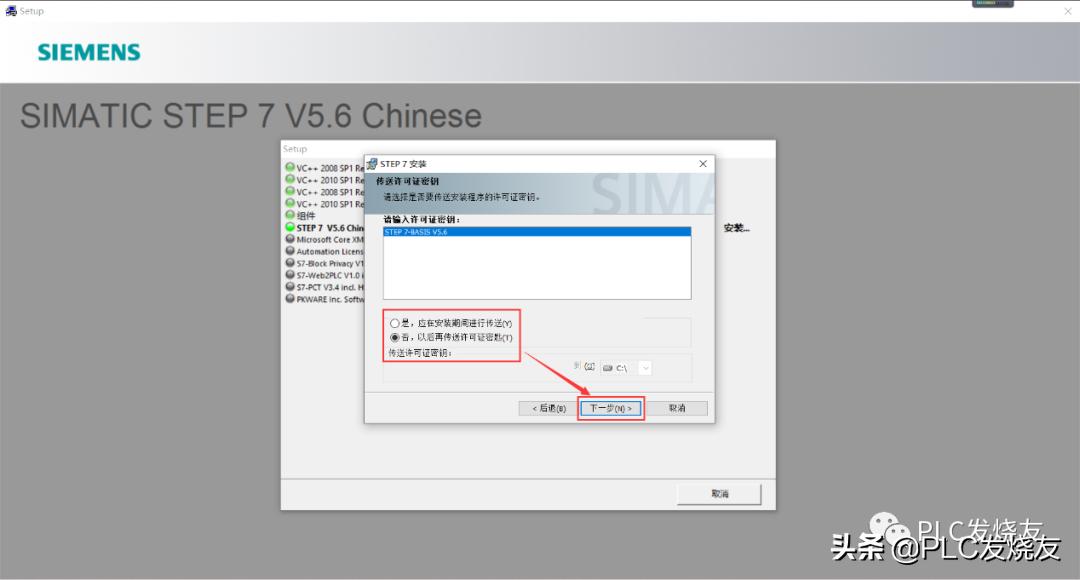
17. 安装步骤十二(这里选择否以后在传送密钥,点击下一步)

simaticstep7v5.6应用教程,simaticstep7v5.6中文版安装方法

18. 安装步骤十三(直接点击安装)

simaticstep7v5.6应用教程,simaticstep7v5.6中文版安装方法

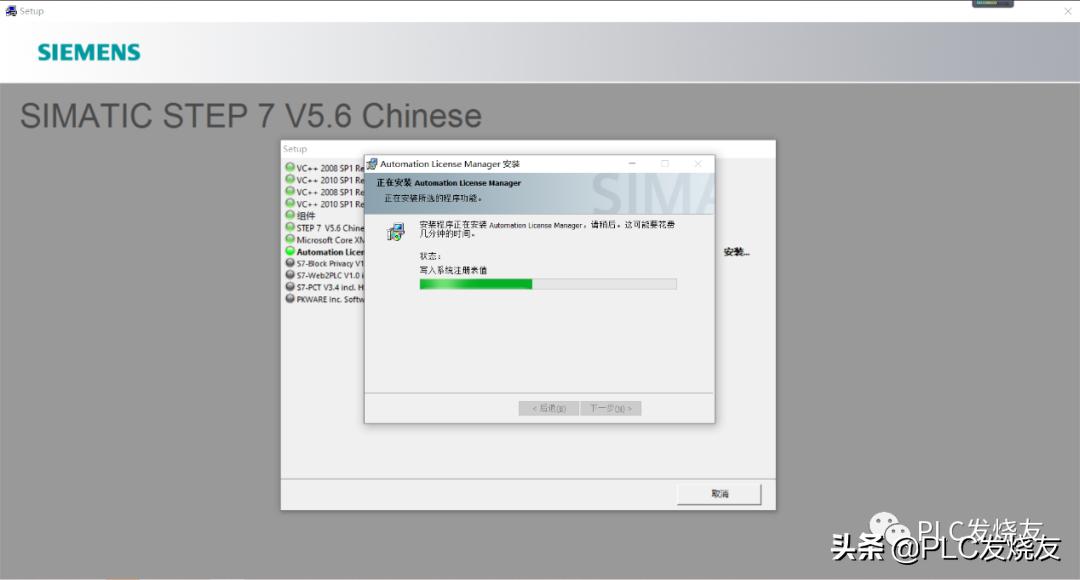
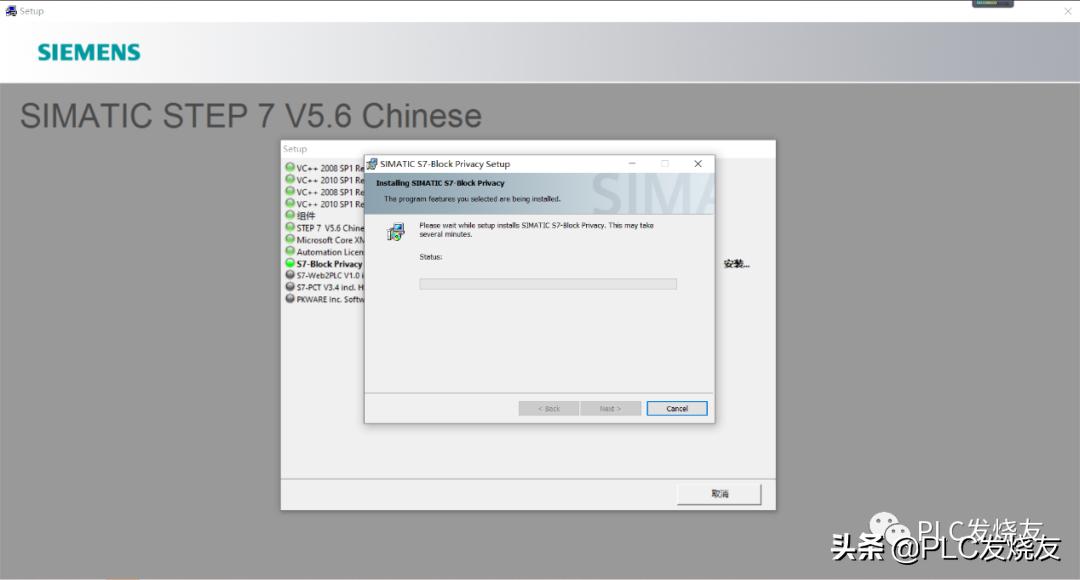
19. 安装步骤十四(安装进行中,耐心等待。)

simaticstep7v5.6应用教程,simaticstep7v5.6中文版安装方法

simaticstep7v5.6应用教程,simaticstep7v5.6中文版安装方法

simaticstep7v5.6应用教程,simaticstep7v5.6中文版安装方法

simaticstep7v5.6应用教程,simaticstep7v5.6中文版安装方法

simaticstep7v5.6应用教程,simaticstep7v5.6中文版安装方法

simaticstep7v5.6应用教程,simaticstep7v5.6中文版安装方法

simaticstep7v5.6应用教程,simaticstep7v5.6中文版安装方法

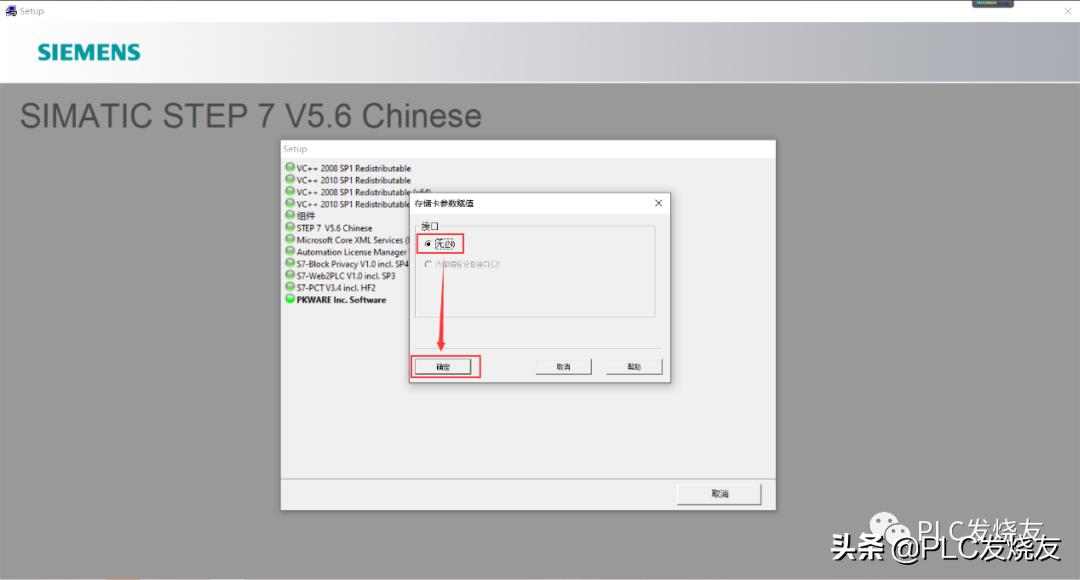
20. 安装步骤十五(这里接口选择(无)点击确定)

simaticstep7v5.6应用教程,simaticstep7v5.6中文版安装方法

21. 安装步骤 十六(许可证,选择跳过。)

simaticstep7v5.6应用教程,simaticstep7v5.6中文版安装方法

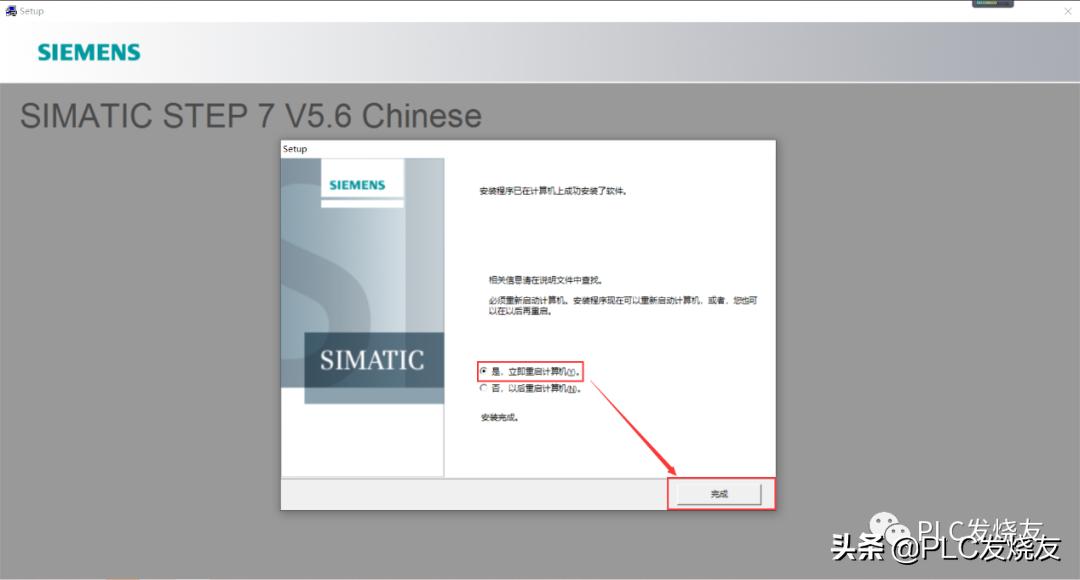
22. 安装步骤 十七(安装完毕,选择立即重新启动)

simaticstep7v5.6应用教程,simaticstep7v5.6中文版安装方法

3 安装常见错误及解决方法

错误一:

出现下图所示的错误,代表我们要删除注册表。

simaticstep7v5.6应用教程,simaticstep7v5.6中文版安装方法

解决方法:

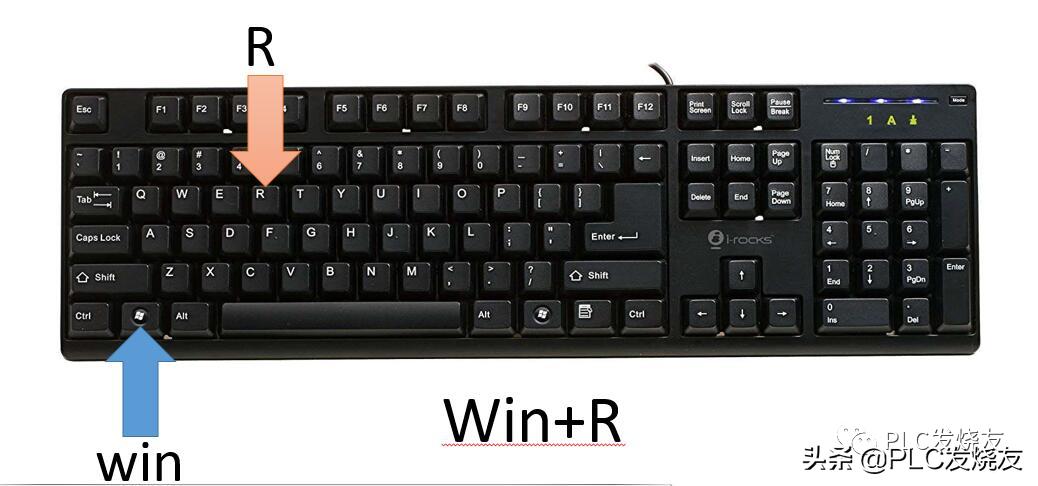
在键盘上找到win窗口键和字母R键,然后win+R同时按下去

simaticstep7v5.6应用教程,simaticstep7v5.6中文版安装方法

按下去之后,打开运行命令,输入regedit点击确定,进入注册表。

simaticstep7v5.6应用教程,simaticstep7v5.6中文版安装方法

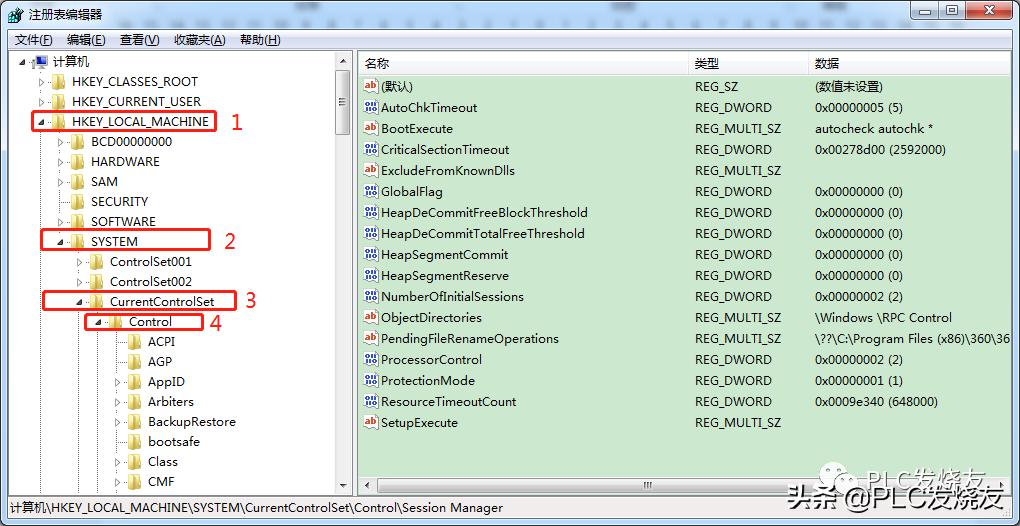
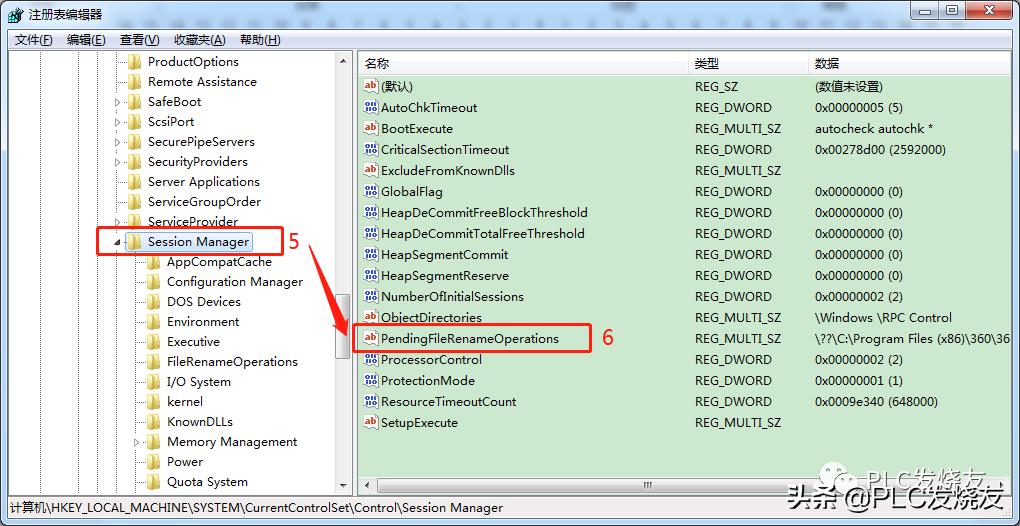
打开注册表后,找到HEEY_LOCAL_MACHINE\SYSTEM\CURRENTCONTROLSET\CONTROL\SESSION MANAGE\下的PendingFileRemameOpeaations
simaticstep7v5.6应用教程,simaticstep7v5.6中文版安装方法

simaticstep7v5.6应用教程,simaticstep7v5.6中文版安装方法

鼠标选择PendingFileRemameOpeaations右键删除它即可。

simaticstep7v5.6应用教程,simaticstep7v5.6中文版安装方法

然后重新启动电脑,再进行安装可解决此问题。

错误二:

出现下图所示这种错误,代表你安装路径有中文。

simaticstep7v5.6应用教程,simaticstep7v5.6中文版安装方法

解决方法:安装路径改为数字加英文,再点击安装即可解决此问题。

来源:技成培训网,作者:徐陈爽.