接着上篇文章来写,上篇说了Word程序的几个常见对象,表格要单独拿出来说,因为Word的表格和Excel的表格有类似之处,有很多要说的地方。
Excel数据和Word数据交互,很多时候就是和Word内部的表格内容进行交互读取:
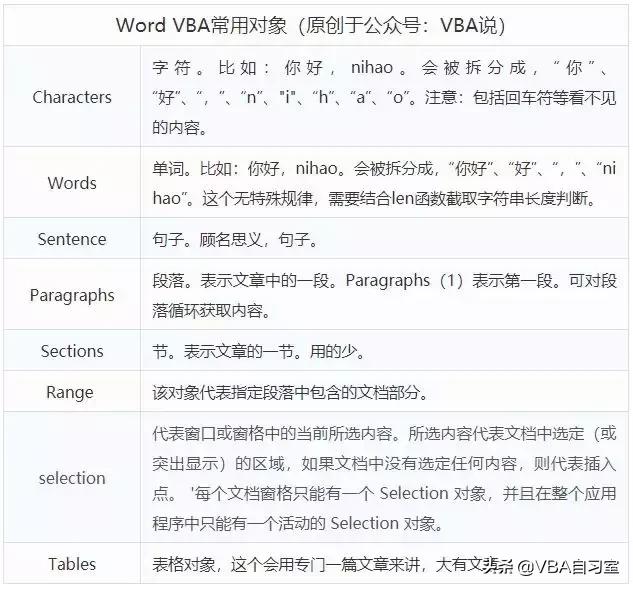
一、了解Word VBA表格的表示方法
■知识点一:创建表格
在Word中插入2行3列的表格,录制宏得到下面的代码:

2行3列的表格
Sub 宏1()
 ActiveDocument.Tables.Add Range:=Selection.Range, NumRows:=2, NumColumns:= _
 3, DefaultTableBehavior:=wdWord9TableBehavior, AutoFitBehavior:= _
 wdAutoFitFixed
 With Selection.Tables(1)
 If .Style <> "网格型" Then
 .Style = "网格型"
 End If
 .ApplyStyleHeadingRows = True
 .ApplyStyleLastRow = False
 .ApplyStyleFirstColumn = True
 .ApplyStyleLastColumn = False
 .ApplyStyleRowBands = True
 .ApplyStyleColumnBands = False
 End With
End Sub
简化后这就是插入表格得核心代码:
Sub 宏1()
 ActiveDocument.Tables.Add Range:=Selection.Range, NumRows:=2, NumColumns:=3
 Selection.Tables(1).Style = "网格型" ’如果不表格样式,看不到边框。
End Sub
■知识点二:表格中单元格表示方法
Word和Excel中表示表格的方法类似,cell和cells两种方式。看下面例子就很容易明白了。
•Cell 对象
代表单个表格单元格。Cell 对象是 Cells 集合中的元素。Cells 集合代表指定对象中所有的单元格。
用 Cell(row, column) 或 Cells(index)可返回 Cell 对象,其中 row 为行号,column 为列号,index为索引序号。

Word表格动态写入内容的顺序
上面的动画是演示的Word表格动态写入内容,以下两段代码均可以实现。
Sub 第一种写入方法()
 Dim t As Table
 Set t = ActiveDocument.Tables(1)
 t.Cell(1, 1).Range = 1
 t.Cell(1, 2).Range = 2
 t.Cell(1, 3).Range = 3
 t.Cell(2, 1).Range = 4
 t.Cell(2, 2).Range = 5
 t.Cell(2, 3).Range = 6
End Sub
Sub 第二种写入方法()
 Set t = ActiveDocument.Tables(1).Range
 For i = 1 To t.Cells.Count
 t.Cells(i).Range = i
 Next
End Sub
也可以看得出来Word种表格的表示方法:一种是根据行、列坐标;一种是按照单元格的前后顺序。
从第二种方法,我们可以清晰的看出来,Word中表格默认的前后顺序。
■知识点三:合并单元格表示方法
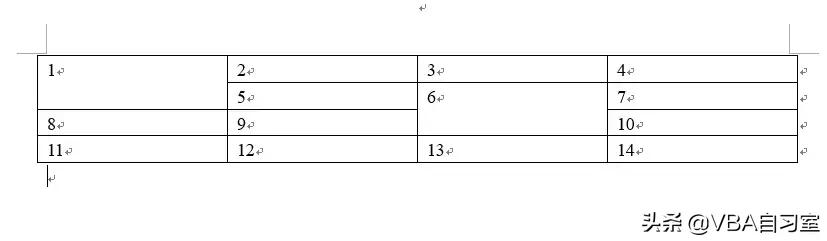
利用第二种单元格的表示方法,按照顺序写入单元格数据,可以看到,合并单元格也是按照前后顺序表示的。
Word VBA中遍历文档中所有表格,统计表格个数。
 Sub 遍历表格()
 Dim i As Integer
 Debug.Print "共" & ThisDocument.Tables.Count; "个表格"
 For i = 1 To ThisDocument.Tables.Count
 Tables(i).Range.Select
 Debug.Print "第" & i & "表格"
 Debug.Print Tables(i).Range.Rows.Count & "行"
 Debug.Print Tables(i).Range.Columns.Count & "列"
 Debug.Print Tables(i).Range.Cells.Count & "个单元格"
 Debug.Print
 Next
 End Sub
二、提取Word表格到Excel
这两天刚帮人写的一小段代码,这老哥有几万个这样的文档,每个文档有五六个表格,需要从中提取数据到excel中。
如图中的表格,需要提取红色内框中的数值,可以用方法一和方法二分别获取得到。我用的方法二读取的单元格数据。直接放总的代码,其中涉及循环打开Word文档的代码,比较综合。
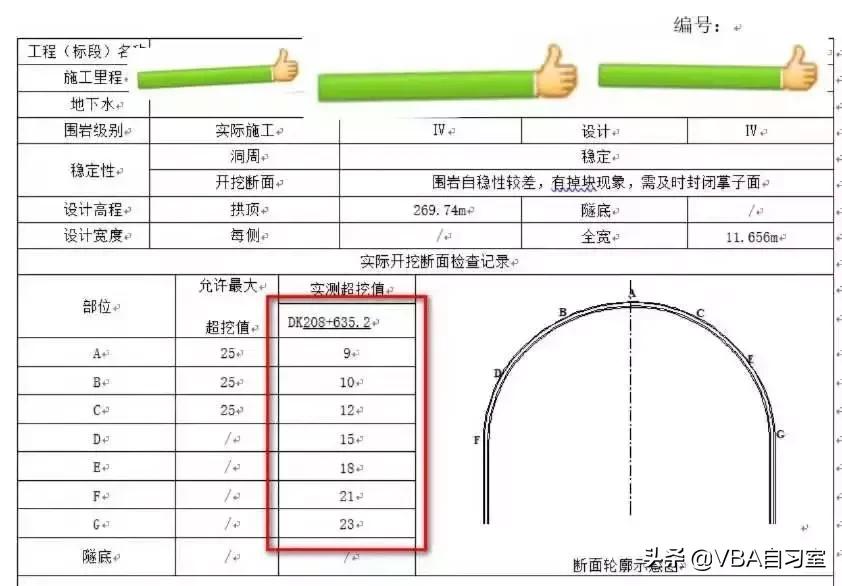
Word表格样式
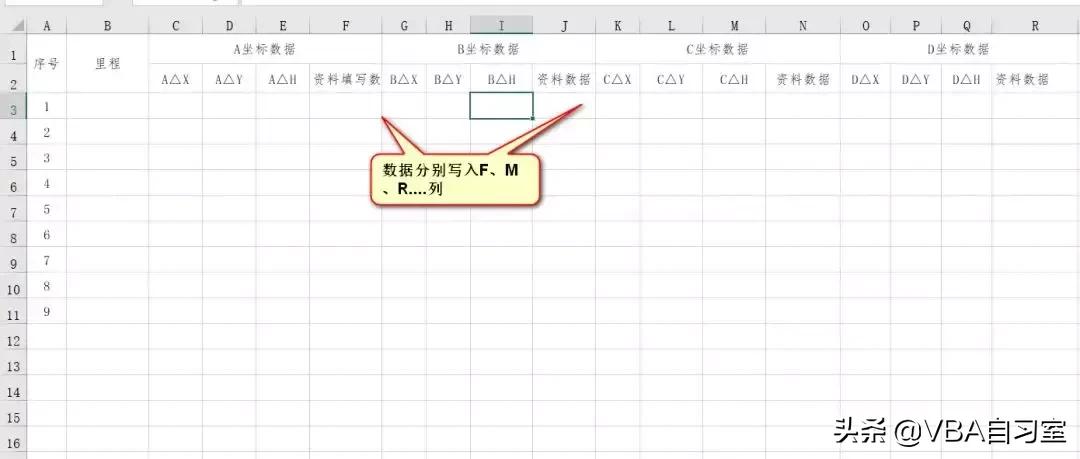
Excel表格样式
Sub test()
 Dim arr()
 k = 1
 Set doc = CreateObject("word.application") ’创建Word对象
 With Application.FileDialog(msoFileDialogFilePicker)
 .AllowMultiSelect = True ’多选择
 .Filters.Clear ’清除文件过滤器
 .Filters.Add "Word 文件", "*.doc*"
 .Show
 For l = 1 To .SelectedItems.Count
 Set wd = doc.Documents.Open(.SelectedItems(l)) ’打开文档
 For Each myTable In wd.Tables
 With myTable.Range.Find
 .Text = "实测超挖值"
 .Execute
 If .Found = True Then
 With myTable.Range
 For i = 1 To .Cells.Count
 s = Left(.Cells(i).Range.Text, Len(.Cells(i).Range.Text) - 2)
 If Left(.Cells(i).Range.Text, Len(.Cells(i).Range.Text) - 2) = "实测超挖值" Then
 ReDim Preserve arr(1 To k + 7)
 arr(k) = Left(.Cells(i + 2).Range.Text, Len(.Cells(i + 2).Range.Text) - 2)
 arr(k + 1) = Val(Left(.Cells(i + 5).Range.Text, Len(.Cells(i + 5).Range.Text) - 2)) * 10
 arr(k + 2) = Val(Left(.Cells(i + 8).Range.Text, Len(.Cells(i + 8).Range.Text) - 2)) * 10
 arr(k + 3) = Val(Left(.Cells(i + 11).Range.Text, Len(.Cells(i + 11).Range.Text) - 2)) * 10
 arr(k + 4) = Val(Left(.Cells(i + 14).Range.Text, Len(.Cells(i + 14).Range.Text) - 2)) * 10
 arr(k + 5) = Val(Left(.Cells(i + 17).Range.Text, Len(.Cells(i + 17).Range.Text) - 2)) * 10
 arr(k + 6) = Val(Left(.Cells(i + 20).Range.Text, Len(.Cells(i + 20).Range.Text) - 2)) * 10
 arr(k + 7) = Val(Left(.Cells(i + 23).Range.Text, Len(.Cells(i + 23).Range.Text) - 2)) * 10
 GoTo 1 ’当查找到数据的时候,不再往下循环Table,直接关闭文档
 Else
 End If
 Next
 End With
 Else
 End If
 End With
 Next myTable
1: wd.Close 0 ’关闭Word文档不保存
 With ThisWorkbook.Worksheets(1)
 .Cells(l + 2, 2) = arr(1)
 .Cells(l + 2, 6) = arr(2)
 .Cells(l + 2, 10) = arr(3)
 .Cells(l + 2, 14) = arr(4)
 .Cells(l + 2, 18) = arr(5)
 .Cells(l + 2, 22) = arr(6)
 .Cells(l + 2, 26) = arr(7)
 .Cells(l + 2, 30) = arr(8)
 End With
 Next
 End With
 Cells.Replace What:="/", Replacement:="", LookAt:=xlPart, SearchOrder:= _
 xlByRows, MatchCase:=False, SearchFormat:=False, ReplaceFormat:=False
End Sub
需要注意的是:单元格中有换行符和制表符,长度是2。取单元格数据的时候,用left函数是为了截取出来真正的数据。
•知识点:Word VBA中的Find方法
查找到关键词之后,直接根据单元格和关键词的相对位置获取数据。这样能减少单元格的循环。
with myTable.Range.Find
.Text = "实测超挖值"
.Execute
If .Found = True Then ’当找到设定的关键词之后,进行操作
’你的代码
end with
三、个人总结
实际中,也就这几种应用了,简单的例子只是为了有个初步的了解,关键还是自己的不断积累经验。
遇到其他好的例子再放上来写第三篇。
看到文末的朋友,资料大放送。
1.关注作者《VBA自习室》
2.评论文章并转发
3.私信作者,即可获取Word VBA学习资料一份
缺其中一个步骤,是领取不到资料的哦~~