1、在ESXI中安装MacOS Mojave的准备工作。
a. *载下**MacOS Mojave ISO文件。
b. *载下**esxi-unlocker-302.tag。
2、使用scp或MobaXterm类似工具将Unlocker文件复制到 ESXI 主机数据存储。
3、从 ESXI 控制台或通过 SSH 解压缩文件:
tar xzvf esxi-unlocker-302.tgz
4、增加执行权限,输入chmod +x esxi-*.sh 提升esxi-install和esxi-uninstall的权限。
chmod +x esxi-*.sh
5、执行安装./esxi-install.sh,显示成功后重启该ESXi服务器。
./esxi-install.sh
VMware Unlocker 3.0.2
===============================
Copyright: Dave Parsons 2011-18
Installing unlocker.tgz
Acquiring lock /tmp/bootbank.lck
Copying unlocker.tgz to /bootbank/unlocker.tgz
Editing /bootbank/boot.cfg to add module unlocker.tgz
Success - please now restart the server!
reboot
注:执行: esxi-smctest.sh 的命令,可以显示修补程序是否成功。它必须从终端或 SSH 会话运行。输出应为:
/bin/vmx

smcPresent = true

custom.vgz false 36014512 B
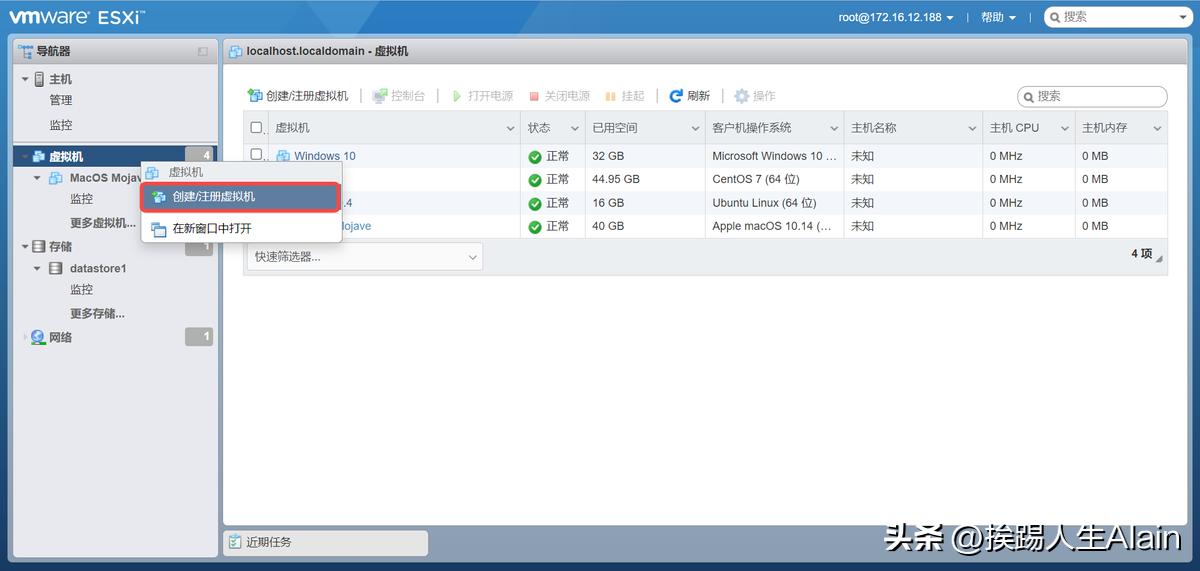
6、在ESXi中右键单击虚拟机,然后选择【创建/注册虚拟机】。
7、创建类型选择【创建新虚拟机】,然后点【下一步】。

8、输入虚拟机名称【MacOS Mojave】,选择客户机操作系统为【Mac OS】,选择客户机操作系统版本为【Apple macOS 10.14(64位)】

9、选择虚拟机存储的位置,然后点【下一步】

10、设置虚拟机的硬件配置,CPU、内存、硬盘可根据物理机做适当调整。

11、选择【CD/DVD驱动器1】右侧的下拉框,然后点【数据存储ISO文件】。

12、在数据存储浏览器窗口中,找到【MacOS Mojave ISO】文件后,点【选择】。

13、检查虚拟机硬件配置是否正确,然后点完成。

14、打开该MacOS Mojave虚拟机电源。

15、选择系统语言为【简体中文】,然后敲回车。

16、在【macOS实用工具】中选择【磁盘工具】,然后点【继续】。

17、选中虚拟磁盘,然后点【抹掉】,输入磁盘名称、格式为【APFS】、方案为【GUID分区图】,然后点【抹掉】。


18、在【macOS实用工具】中,选择【安装macOS】,然后点【继续】。

19、在安装macOS Mojave界面中选择【继续】。

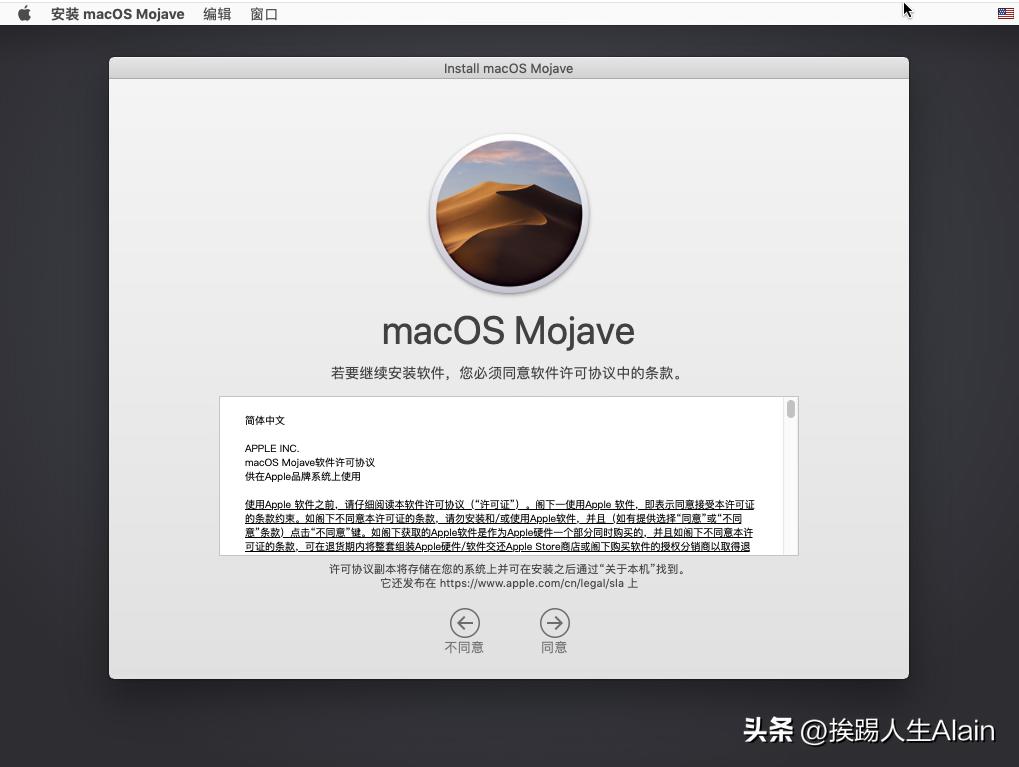
20、安装macOS Mojave软件许可条款,选择【同意】。

21、选择macOS Mojave需要安装在哪块磁盘上,然后点【安装】。


22、时区选择【中国大陆】,然后点【继续】。

23、选择适合自己的输入法,然后点【继续】。

24、数据与隐私,点【继续】。

25、信息传输到这台MAC电脑,选择【现在不传输任何信息】,然后点【继续】。

26、暂不登录Apple ID,选择【稍后设置】,然后点【跳过】。


27、条款与条件,选择【同意】。


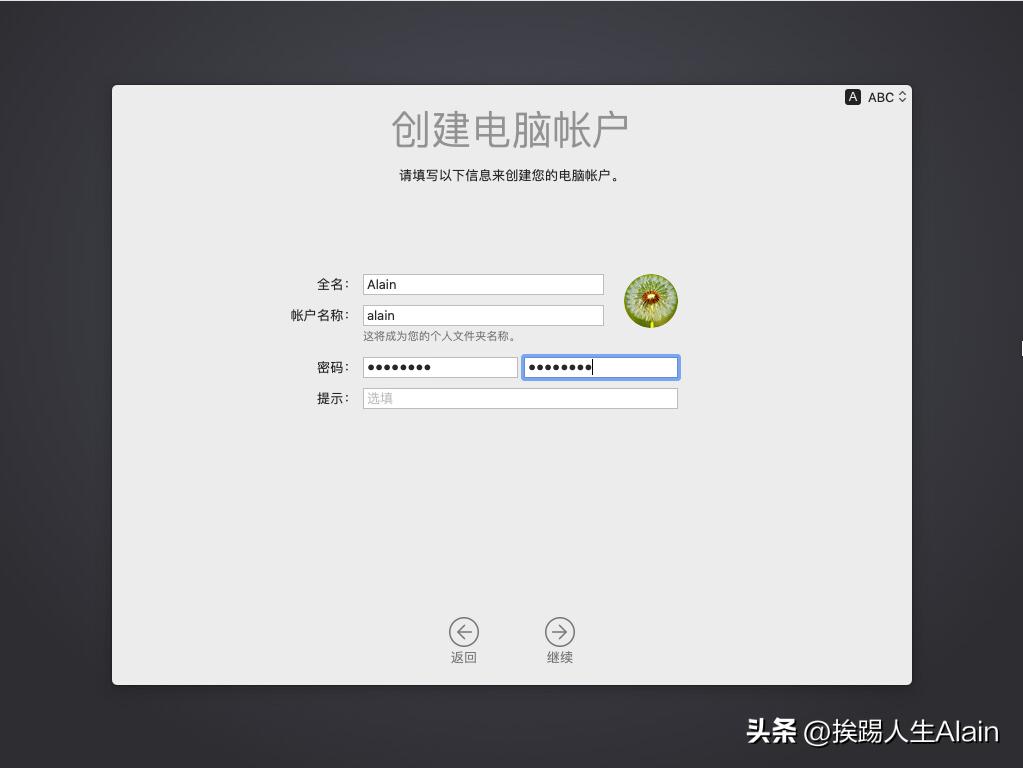
28、创建电脑帐户,输入要创建的用户名和密码,然后点【继续】。
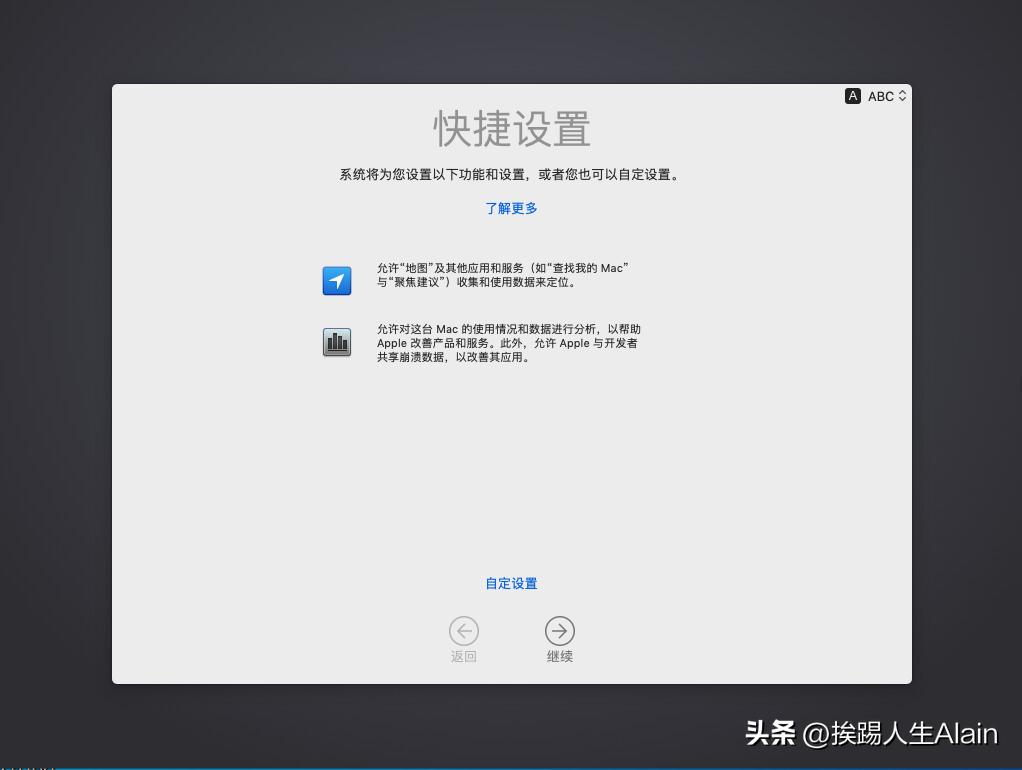
29、暂不设置“快捷设置”,然后点【继续】。
30、选择自己喜欢是主题外观,然后点【继续】。

31、MacOS Mojave系统安装完成。


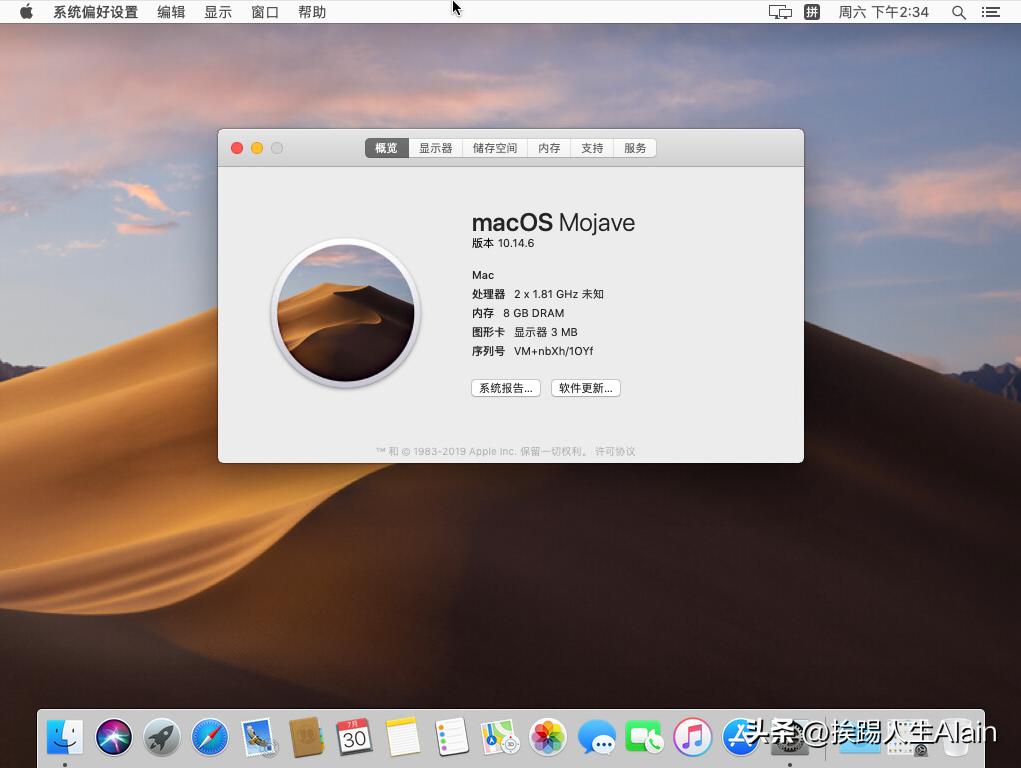
说明:如果安装MacOS Mojave前没有安装unlocker,或者安装unlocker不成功,开启虚拟机电源后系统会一直反复重启。