编程要从娃娃抓起,推荐给身边的小朋友吧!!!!!
上节说了表格,有序列表,无序列表,这节介绍一下文件上传,下拉选择框,HTML 区块元素,iframe内部页面
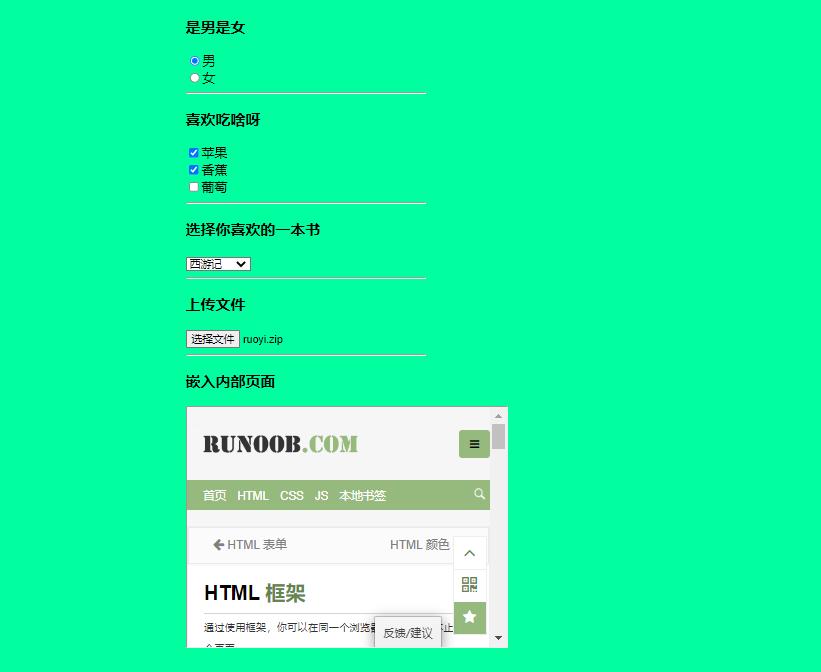
上图是这节讲的主要内容,以下代码是对应的html文本,接下来将逐个解析其中的用途
<!DOCTYPE html>
<html>
<head>
	<title>标题-爆米花</title>
</head>
<body style="margin:0 auto;width:300px;background:#00ffa0  ;height:200px;">
	爆米花的内容<br>
	<br>
	<h3>是男是女</h3>
	<input type="radio" name="sex" value="male">男<br>
	<input type="radio" name="sex" value="female">女
	<hr>
	<h3>喜欢吃啥呀</h3>
	<input type="checkbox" name="食物" value="苹果">苹果<br>
	<input type="checkbox" name="食物" value="香蕉">香蕉<br>
	<input type="checkbox" name="食物" value="葡萄">葡萄
	<hr>
	<h3>选择你喜欢的一本书</h3>
	<select name="cars">
		<option value="volvo">西游记</option>
		<option value="saab">红楼们</option>
		<option value="fiat">水浒传</option>
		<option value="audi">三国演义</option>
	</select>
	<hr>
	<h3>上传文件</h3>
	<input type="file" id="upload" name="upload" /> <br />
	<hr>
	<h3>嵌入内部页面</h3>
	<iframe src="https://www.runoob.com/html/html-iframes.html" width="400" height="300"></iframe>
</body>
</html>
在上几节已经讲解了input标签的一些type属性例如:text,button等这节有radio,checkbox,file
【type="radio"】表示单选项,只能选择其中一个,例如我们在填写基本信息时选择男女
【type="checkbox"】表示多选项,多选题(老师在出题时候可以用到)
【type="file"】表示文件,我们可以点击选择文件上传
【<select>】表示是一个下拉选择框【<option>】表示其中的每个选项
【<iframe>】可以做嵌入内部页面,例如想在我们个人的页面上切入一些外部页面