背景
之前弄了个网络打印机服务器cups,是可以添加打印机然后发起打印的,而手机、电脑却又只支持在局域网内添加打印机,所以一旦我在外面的话,就无法利用家里的打印机打印了。
命令行打印
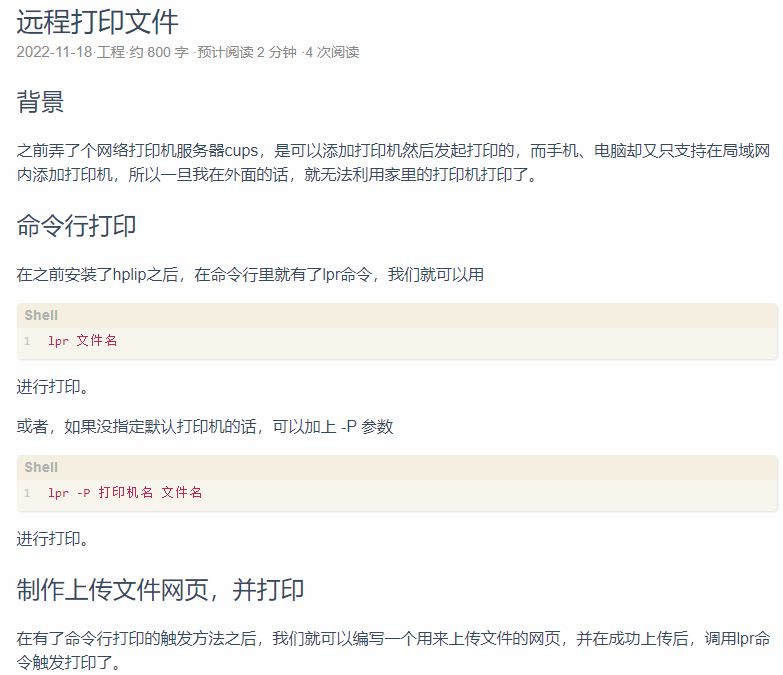
在之前安装了hplip之后,在命令行里就有了lpr命令,我们就可以用lpr 文件名进行打印。 或者,如果没指定默认打印机的话,可以加上 -P 参数lpr -P 打印机名 文件名进行打印。
制作上传文件网页,并打印
在有了命令行打印的触发方法之后,我们就可以编写一个用来上传文件的网页,并在成功上传后,调用lpr命令触发打印了。 上传文件的网页:<html><head> <title>File Print</title></head><body><form action='uploader_v1' method="POST" enctype="multipart/form-data"> <label>Choose file to print</label> <input type="file" name="upload_file" accept="*"/> <input type="submit" value="submit"/></form></body></html>
后台程序:import osimport subprocessimport logging from flask import Flask, render_template, request, Response, make_responsefrom gevent.pywsgi import WSGIServer host = '::'port = 6311app = Flask(__name__, template_folder='site')app.config['UPLOAD_FOLDER'] = 'site/upload/' logging.getLogger().setLevel(logging.INFO)fh = logging.FileHandler("log.log")fh.setLevel(logging.INFO)logging.getLogger().addHandler(fh) @app.route('/')def upload_root(): return upload_v1() @app.route('/upload_v1')def upload_v1(): return render_template('uploader.html') @app.route('/uploader_v1', methods=['GET', 'POST'])def uploader_v1(): if request.method == 'GET': return render_template(r'upload_v1.html') save_path = app.config['UPLOAD_FOLDER'] os.makedirs(save_path, exist_ok=True) f = request.files['upload_file'] logging.info(request.files) upload_file_path = os.path.join(save_path, f.filename) f.save(upload_file_path) logging.info(upload_file_path) p = subprocess.Popen(f'sudo chmod 777 {upload_file_path}', shell=True, stdout=subprocess.PIPE, stderr=subprocess.STDOUT) logging.info(f"{p.stdout.readlines()}\n\n{p.wait()}") p = subprocess.Popen(f'lpr -P HP_LaserJet_1020_usb {upload_file_path} -o media=a4', shell=True, stdout=subprocess.PIPE, stderr=subprocess.STDOUT) resp = f"{p.stdout.readlines()}\n\n{p.wait()}" logging.info(resp) return resp if __name__ == '__main__': # app.run(host='0.0.0.0', port=port, debug=True) # app.run(host='::', port=port, debug=True) server = WSGIServer((host, port), app) print("Server started") server.serve_forever()
在测试中发现,由于我的域名解析是ipv6地址,所以flask里的监听地址就不能设置成常用的 0.0.0.0 了,而是要设置为 :: 。
中文
但尝试打印后,发现用命令行打印的文件不显示中文。
设置地区
首先,我们先执行 sudo raspi-config ,把里面的 locale 设置为 ZH-CN UTF-8。 然后重启之后再打印,发现还是有部分中文字符无法显示。
安装uming字体
经过查资料,发现lpr打印依赖的是uming字体,但是树莓派默认没有安装。所以我们需要执行 sudo apt install fonts-arphic-uming 进行安装。
设置自启动
首先我们需要编写一个shell当可执行文件:#!/bin/shcd /home/zsd/lp_sitepython main_flask.py需要注意的是,该shell脚本开头必须指定解释器,不然自启动会会报失败。 接下来,我们添加service文件,sudo vim /usr/lib/systemd/system/lp_site.service[Unit] Description=lp_site [Service] Type=oneshot ExecStart=/home/zsd/lp_site/main_flask.sh [Install] WantedBy=multi-user.target然后使能自启动,即可: sudo systemctl enable xx_net.service