网络管理器(Network Manager)是一个*态网动**络的控制器与配置系统,它用于当网络设备可用时保持设备和连接开启并激活。默认情况下,CentOS/RHEL 7安装有网络管理器,并处于启用状态。
使用下面的命令来验证网络管理器服务的状态:
# systemctl status NetworkManager.service
运行以下命令来检查受网络管理器管理的网络接口:
# nmcli dev status
1、不使用网络管理配置静态IP地址
编辑配置文件:
[root@localhost network-scripts]# vi ifcfg-ens33
TYPE="Ethernet"
#BOOTPROTO="dhcp"
BOOTPROTO="static"
IPADDR=192.168.137.137
NETMASK=255.255.255.0
NM_CONTROLLED=no
DEFROUTE="yes"
PEERDNS="yes"
PEERROUTES="yes"
IPV4_FAILURE_FATAL="no"
IPV6INIT="yes"
IPV6_AUTOCONF="yes"
IPV6_DEFROUTE="yes"
IPV6_PEERDNS="yes"
IPV6_PEERROUTES="yes"
IPV6_FAILURE_FATAL="no"
IPV6_ADDR_GEN_MODE="stable-privacy"
NAME="ens33"
UUID="ae6d20d0-7a92-437e-a41d-103b1bb6adc6"
DEVICE="ens33"
ONBOOT="yes"
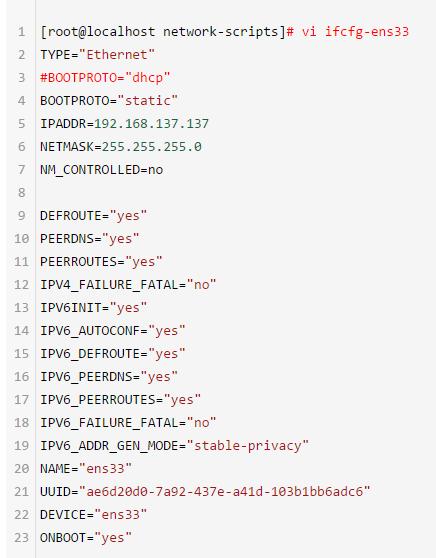
截图
“NM_CONTROLLED=no”表示该接口将通过该配置文件进行设置,而不是通过网络管理器进行管理。
重启网络服务:
# systemctl restart network.service
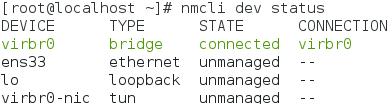
此时ens33这个接口是不受网络管理器管理的:
2、使用网络管理器配置静态IP地址
如果你想要使用网络管理器来管理该接口,你可以使用nmtui(网络管理器文本用户界面),它提供了在终端环境中配置配置网络管理器的方式。
在使用nmtui之前,首先要在/etc/sysconfig/network-scripts/ifcfg-ens33中设置“NM_CONTROLLED=yes”。重启网络。
nmtui - Text User Interface for controlling NetworkManager
安装nmtui
# yum install NetworkManager-tui
通过网络管理器配置IP信息
# nmtui edit ens33
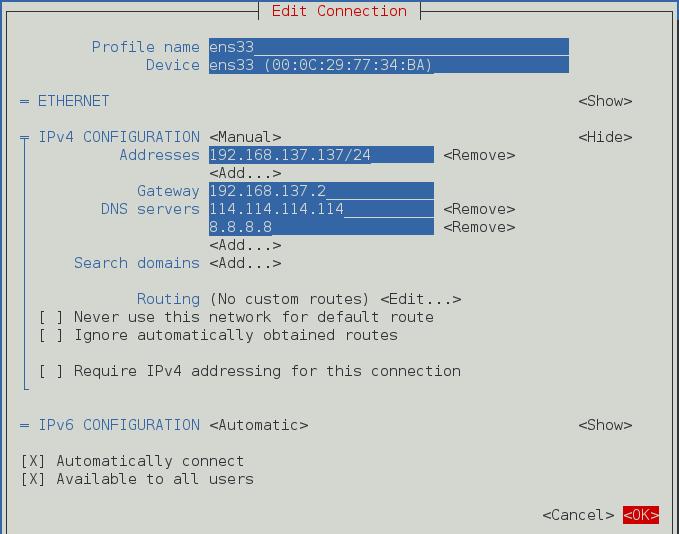
截图
查看配置文件内容:【可供手动编辑时参考】
[root@localhost ~]# cat /etc/sysconfig/network-scripts/ifcfg-ens33
TYPE="Ethernet"
#BOOTPROTO="dhcp"
BOOTPROTO=none
NM_CONTROLLED=yes
DEFROUTE="yes"
IPV4_FAILURE_FATAL="no"
IPV6INIT="yes"
IPV6_AUTOCONF="yes"
IPV6_DEFROUTE="yes"
IPV6_FAILURE_FATAL="no"
IPV6_ADDR_GEN_MODE="stable-privacy"
NAME="ens33"
UUID="ae6d20d0-7a92-437e-a41d-103b1bb6adc6"
DEVICE="ens33"
ONBOOT="yes"
DNS1=114.114.114.114
DNS2=8.8.8.8
IPADDR=192.168.137.137
PREFIX=24
GATEWAY=192.168.137.2
IPV6_PEERDNS=yes
IPV6_PEERROUTES=yes
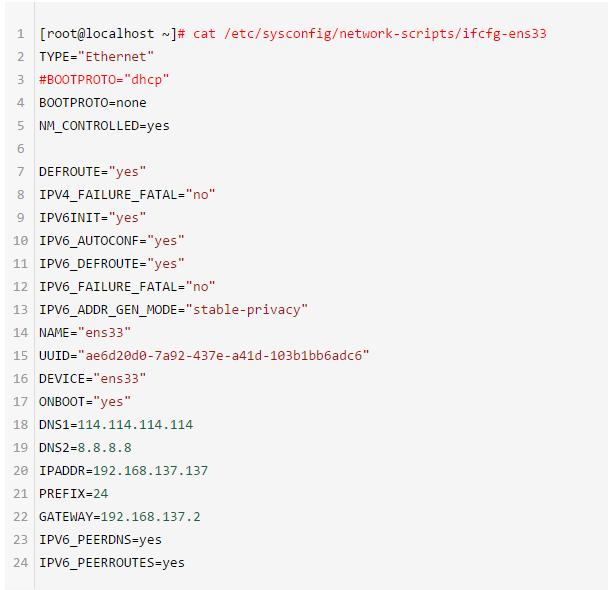
截图
最后,重启网络服务
# systemctl restart network.service
nmcli --help
[root@localhost ~]# nmcli --help
Usage: nmcli [OPTIONS] OBJECT { COMMAND | help }
OPTIONS
-t[erse] terse output
-p[retty] pretty output
-m[ode] tabular|multiline output mode
-c[olors] auto|yes|no whether to use colors in output
-f[ields] <field1,field2,...>|all|common specify fields to output
-e[scape] yes|no escape columns separators in values
-a[sk] ask for missing parameters
-s[how-secrets] allow displaying passwords
-w[ait] <seconds> set timeout waiting for finishing operations
-v[ersion] show program version
-h[elp] print this help
OBJECT
g[eneral] NetworkManager’s general status and operations
n[etworking] overall networking control
r[adio] NetworkManager radio switches
c[onnection] NetworkManager’s connections
d[evice] devices managed by NetworkManager
a[gent] NetworkManager secret agent or polkit agent
m[onitor] monitor NetworkManager changes
[root@localhost ~]#
man nmtui
[root@localhost ~]# man nmtui
NMTUI(1) General Commands Manual NMTUI(1)
NAME
nmtui - Text User Interface for controlling NetworkManager
SYNOPSIS
nmtui-edit | nmtui edit {name | id}
nmtui-connect | nmtui connect {name | uuid | device | SSID}
nmtui-hostname | nmtui hostname
DESCRIPTION
nmtui is a curses‐based TUI application for interacting with NetworkManager. When starting nmtui, the user is prompted to choose the activity to perform unless it was specified as the first
argument.
The supported activities are:
edit
Show a connection editor that supports adding, modifying, viewing and deleting connections. It provides similar functionality as nm-connection-editor.
connect
Show a list of available connections, with the option to activate or deactivate them. It provides similar functionality as nm-applet.
hostname
Set the system hostname.
Corresponding to above activities, nmtui also comes with binaries named nmtui-edit, nmtui-connect, and nmtui-hostname to skip the selection of the activities.
SEE ALSO
nmcli(1), nm-applet(1), nm-connection-editor(1), NetworkManager(8).
NetworkManager 1.4.0