server2019创建ftp服务器 (win2019如何搭建ftp服务器)

使用的是Workbench远程连接 链接2019的服务器。 ecs可以直接远程桌面链接 Linux 可以直接Windows powershell链接

那么此时的windows 2019 serer服务器没有分配域名

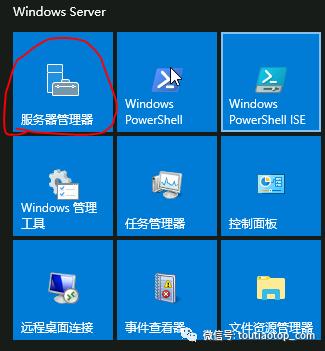
先来搭建FTP 打开服务器管理器
win2019如何搭建ftp服务器,windowsserverftp服务器搭建

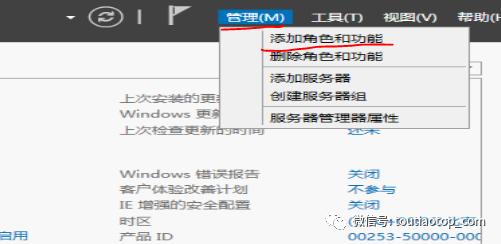
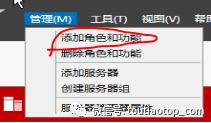
管理 添加服务器角色和功能

win2019如何搭建ftp服务器,windowsserverftp服务器搭建

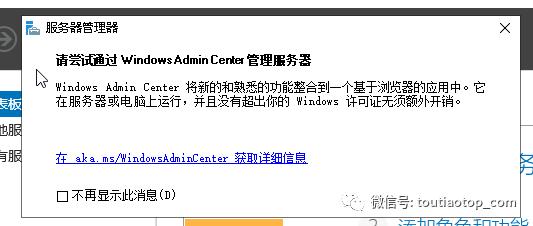
进入服务器管理器会弹出

win2019如何搭建ftp服务器,windowsserverftp服务器搭建

我们先不用理会这个 我们添加角色和功能的时候 可以看到小红旗的通知

win2019如何搭建ftp服务器,windowsserverftp服务器搭建

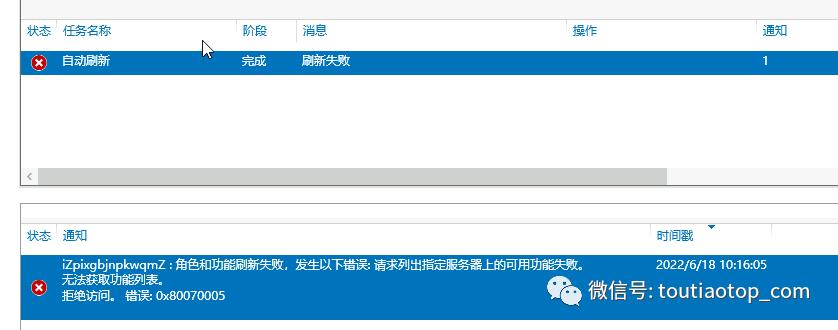
点进去之后 有一个消息

win2019如何搭建ftp服务器,windowsserverftp服务器搭建

角色和功能刷新失败 无法获取功能列表 拒绝访问的错误0x80070005

这个先X掉 基于角色或基于功能安装

win2019如何搭建ftp服务器,windowsserverftp服务器搭建

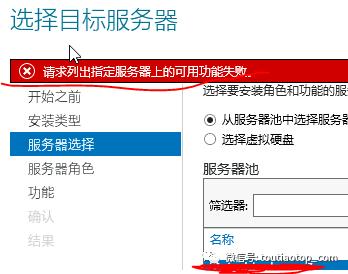
我们从服务池中选择服务器 也出现错误

win2019如何搭建ftp服务器,windowsserverftp服务器搭建

请求列出指定服务器上的可用功能失败

出现上面这些问题 要么就是你乱卸载 乱删除 没有清理干净 要么就是你服务器上面装了360 把360卸载了就可以了。

下面就开始正常安装

  1. 打开服务器管理器
  2. 2.管理-添加角色和功能

win2019如何搭建ftp服务器,windowsserverftp服务器搭建

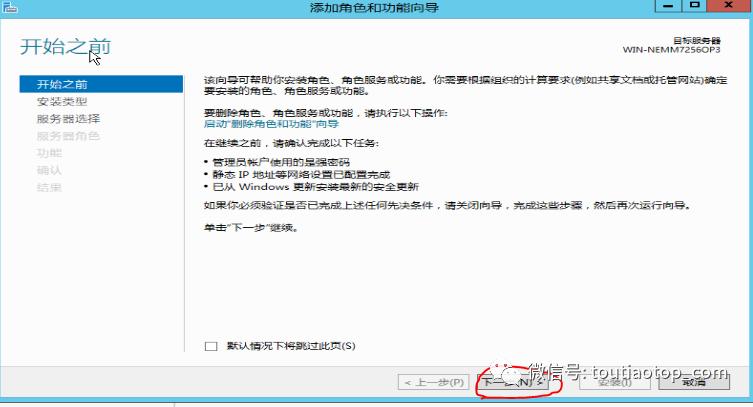
3.添加角色和功能向导 下一步

win2019如何搭建ftp服务器,windowsserverftp服务器搭建

4.基于角色或基于功能安装 下一步

win2019如何搭建ftp服务器,windowsserverftp服务器搭建

5.选择目标服务器 选择当前你要安装的服务器名称

win2019如何搭建ftp服务器,windowsserverftp服务器搭建

6.web服务器角色iis 下一步

win2019如何搭建ftp服务器,windowsserverftp服务器搭建

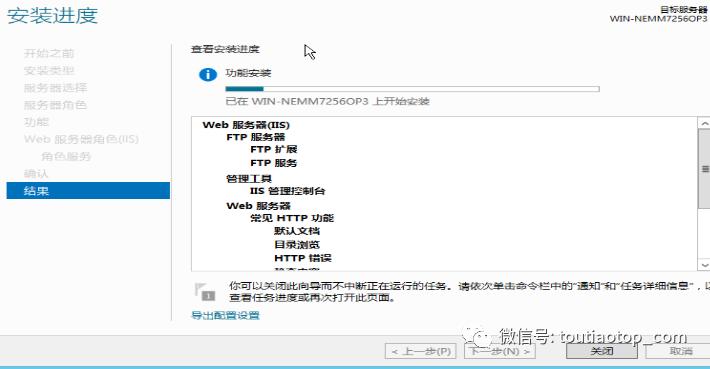
7.勾选FTP服务器 FTP扩展 其他的默认就可以

win2019如何搭建ftp服务器,windowsserverftp服务器搭建

8.勾选如果需要重启目标服务器 点击安装

win2019如何搭建ftp服务器,windowsserverftp服务器搭建

9.安装需要分分钟的时间

win2019如何搭建ftp服务器,windowsserverftp服务器搭建

10.成功安装之后就可以打开iis服务器

win2019如何搭建ftp服务器,windowsserverftp服务器搭建

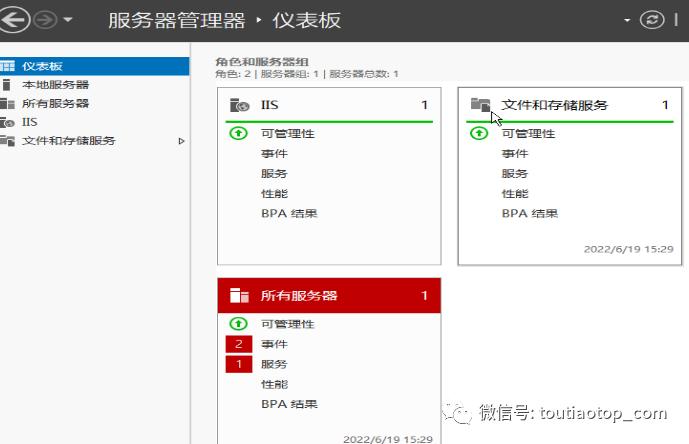
11.在服务器管理器 仪表盘可以看到我们安装的服务角色

win2019如何搭建ftp服务器,windowsserverftp服务器搭建

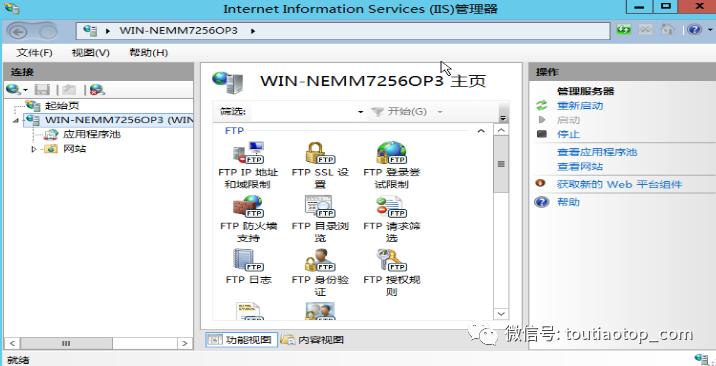
12.FTP 就在iis服务器上面搭建

win2019如何搭建ftp服务器,windowsserverftp服务器搭建

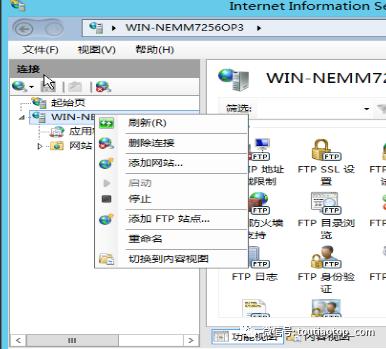
13.右键iis服务器 添加FTP站点

win2019如何搭建ftp服务器,windowsserverftp服务器搭建

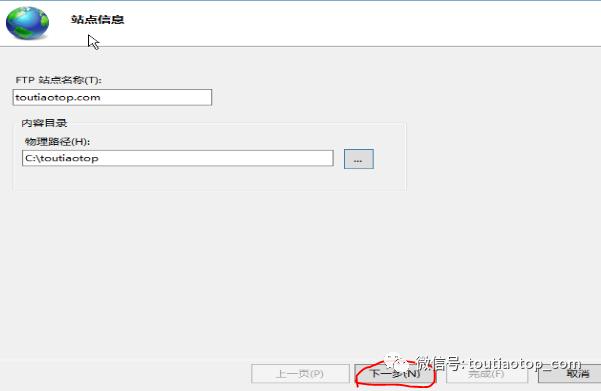
14.FTP站点信息 名称 物理路径随意

win2019如何搭建ftp服务器,windowsserverftp服务器搭建

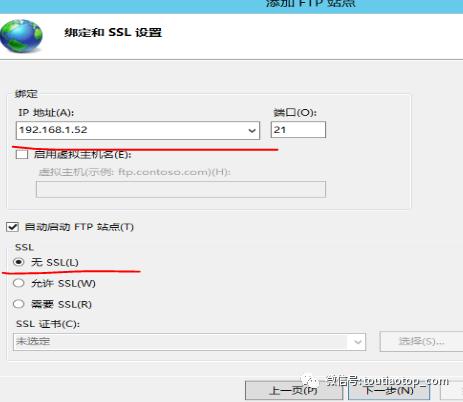
15.IP地址 云服务器的选择外网地址 端口21 安全组要放行端口 无ssl
win2019如何搭建ftp服务器,windowsserverftp服务器搭建

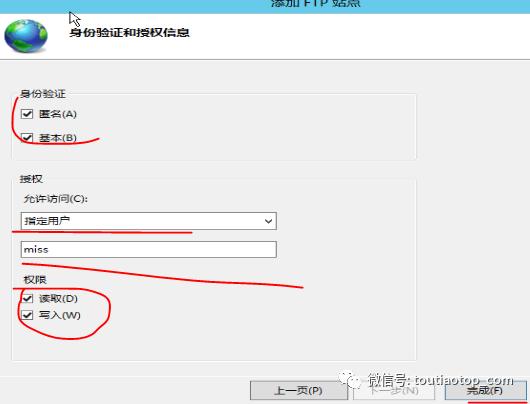
16.身份验证和授权信息 匿名 基本都勾上 授权指定用户 权限 读取 写入
win2019如何搭建ftp服务器,windowsserverftp服务器搭建

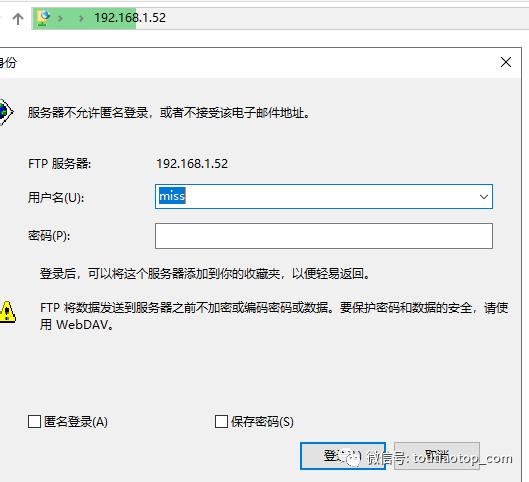
17,点击完成 链接FTP

win2019如何搭建ftp服务器,windowsserverftp服务器搭建

FTP服务器 就搭建部署完成了 云服务器安装FTP 安全组端口放行21FTP链接端口即可

关注我 带你安装更多服务器角色 各种程序部署 linux centos kali 系统的各种技术功能提升

技术支持@我