1 执行概要
对VMware vSphere虚拟化环境巡检的逻辑组成,通过对检查范围定义的与VMware vSphere虚拟化环境各组件对象相关的各维度的配置、操作和使用方面的评估,发现、分析和基于巡检内容的结果提供改善建议。
2 巡检背景
随着客户业务不断增长对各业务数据中心虚拟化平台的要求也越来越高,数据中心需要更为稳定可靠的提供业务所需的IT能力,离不开定期有效的巡检和评估,来发现数据中心上的风险隐患和优化项。
数据中心内的软硬件平台可靠性和可用性都存在巨大挑战的情况下。出于更好的保障安全生产和应对业务平台的连续性工作需求的考虑,排查VMware vSphere虚拟化平台存在的风险与隐患,针对发现的问题进行整改优化。旨在改善平台的运行环境和风险,为客户业务提供健康稳定可靠的虚拟化基础架构平台服务。
2.1 检查范围
描述硬件基础架构和SDDC内容,务必讲清楚客户的当前数据中心软硬件情况。如VMware vSphere虚拟化平台使用了XX个刀片机箱,硬件提供商为HP和IBM,XX个刀片机箱总共包含了XX片x86服务器。这些虚拟化平台的刀片服务器分配情况:
vCenter Server Production平台:
- 包含了7个数据中心下的14个vSphere群集;
- 群集中,123片x86刀片服务器;
- 承载了xx台业务虚拟机;
- 虚拟化平台采用了2台HP的3PAR存储;划分了24个LUN给各群集。
群集有按照业务门类进行划分。
2.2 检查方法
VMware vSphere虚拟化环境的巡检是针对VMware vSphere虚拟化环境的全面分析,根据历史的各种监控数据来分析当前的VMware vSphere虚拟化环境是否可靠,存在哪些隐患及该如何解决这些面临的问题。
- 评估和总结 vSphere 环境的当前运行状况和体系结构,重点是技术和组织方面。
- 提供明确的建议,以提高环境的可用性、性能、可管理性、可恢复性、可扩展性。
- 作为参考,以审查最佳实践并在利益相关者之间传达当前的基础结构问题。
2.3 巡检内容
包括了原始的配置设置、性能指标、屏幕截图、观察注释和客户端提供的文档。
2.4 巡检数据分析
分析是由这些数据与vSphere基础架构的行业最佳实践和/或客户管理操作标准规范进行比较而推动的,包括但不限于以下方面:
- 计算 – ESXi管理程序和主机的硬件配置
- 网络 – 虚拟和物理网络基础设施配置
- 存储 – 共享存储体系架构和配置
- 虚拟数据中心 – vCenter Server、监控、备份、群集合规性
- 虚拟机 – 虚拟机负载、应用需求
2.5 巡检的维度
对于VMware vSphere虚拟化环境巡检的评估维度主要在技术和组织方面,包括了以下要点:
- 可用性
- 可管理性
- 性能
- 可靠性
- 安全性
2.6 报告概述
VMware vSphere虚拟化环境建设应该考虑上述所有相关解决方案,而在实际应用过程中这几方面在客户环境中体现了不同的完备程度。由于用户各业务特点,对这些范围的侧重程度不同,因此我们在评估特定行业用户的VMware vSphere虚拟化环境,要充分考虑这种行业因素,所得出的结论也是对特定行业用户有指导意义的评估结果。
检查报告卡将使用以下级别表述评估结果:
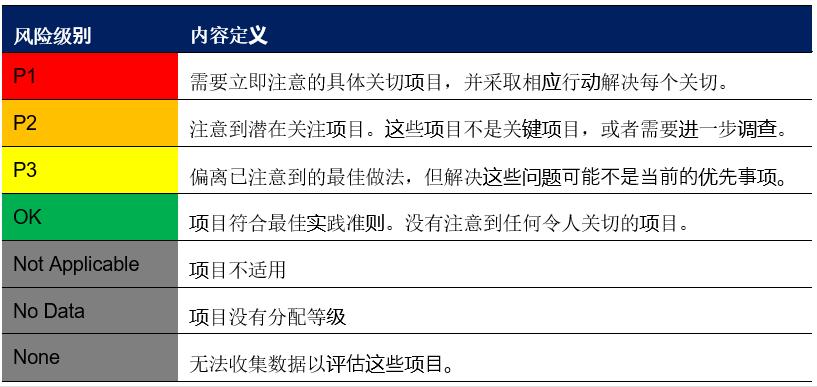
风险等级报告卡
3 巡检的工具
基于以上的巡检目标、巡检维度和巡检的内容和巡检数据分析,对于巡检工具的选择则不拘泥于任何一种特定的工具:开源工具、RV Tools、自写脚本等。
推荐使用以下专业工具进行:
3.1 RV Tools
参考RV Tools简介。
3.2 vRealize Operations
vRealize Operations提供了从物理,虚拟和云基础架构(包括VM和容器)到其支持的应用程序的全栈可见性,可提供持续的性能优化,有效的容量和成本计划与管理,应用程序感知的智能修复以及集成的合规性。
3.3 VMware Health Analyzer
VMware Health Analyzer 可用作解决方案提供商的工作台,帮助精简运行状况检查服务的交付,自动收集数据,提供与每项最佳实践相关的数据和分析以及生成运行状况检查报告。用户可以查看并编辑等级和观察结果,然后生成 Microsoft Word 格式的报告。
注意:
Health Analyzer 可优化和精简运行状况检查服务的交付,但不能替代领域专家,后者可以熟练、准确地将检查结果和建议应用于客户的独特环境。了解 NSX 运行状况检查的结果并采取相应的措施尤其需要 vSphere、NSX for vSphere 和 TCP/IP 网络连接方面的专业技能。
4 检查结果和建议
4.1 结果汇总
检查结果将汇总数据中心虚拟化平台检查结果,检查结果应包含“计算、网络、存储、虚拟数据中心和虚拟机” 等检查项目,内容范围将涵盖“管理、故障排除、合规性、性能、配置和架构”等多个方面。
相同的检查项目和结果将汇总为单一项目进行统计,不进行重复统计。
4.1.1 风险和隐患
根据对数据中心虚拟化平台检查数据结果,对发现的问题和数据分析汇总,并且分类汇总。依据检查内容、结果、等级、影响度和建议等多个方面总结,并筛查虚拟化平台中存在的风险与隐患。根据VMware最佳实践、现场环境和客户管理操作标准规范及于客户交流确认的风险点进行罗列:
4.1.1.1 巡检结果汇总
数据展示方式图表
4.1.1.2 巡检风险点项目
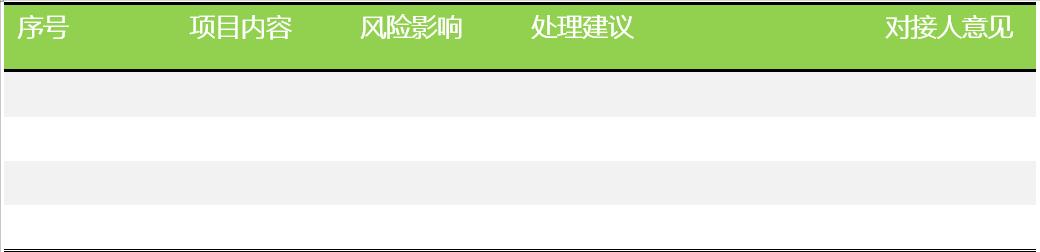
巡检结果的风险点项目
4.1.2 优化选项
优化选项是客户虚拟化平台角度出发考虑,针对虚拟化平台可选的优化项目和健康检查结果。并结合VMware最佳实践和用户现场环境,建议在检查后进行优化的项目和整改内容。
4.2 虚拟化平台运行状况
4.2.1 警告/警报
vCenter Server警告/警报管理模块,可为vCenter Server虚拟数据中心内管理的物理与逻辑对象进行监控。从vCenter Server管理平台得知存在以下警告和警报。
建议为非计划内出现的警告/警报事件,巡检现场作进一步分析和讨论,并确定进行修复的计划。
4.2.2 vCenter Server服务健康状况
vCenter Server作为虚拟化平台管理中心,负责管理平台硬件资源、警告监控、用户接入、资源分析与调度和界面展现等功能,其组件的服务工作健康状况将直接影响到平台的管理和使用。
- 通过vSphere Web Client登录到https://vCenter Server:5480,摘要查看当前vCenter的服务健康状况。
- 通过登录到vCenter Server的管理控制台console查看vCenter Server的各个分区空间使用率情况。
4.2.3 虚拟化整合比率
虚拟化平台物理主机与虚拟机的分配比例,此数据可反应出当前虚拟化平台单个计算群集或主机承载虚拟机的密度。在相同硬件的情况下物理主机与虚拟机配比越大,说明硬件资源得到充分使用,投资得到有效的利用;相反物理主机与虚拟机配比越小,说明资源没有得到有效的利用。
考虑到群集规划是根据业务类型划分,不同类型的业务系统数量规模存在一定差异,这是根据业务层面分配。
因此,VMware从虚拟化平台的管理、风险和投资回报角度建议:
- 应制定标准虚拟化平台整合比率和硬件利用运维规范,以从运维管理角度有效的充分利用平台硬件资源;
- 根据不同类型业务系统数量规模,适当的灵活调整群集硬件资源分配,以降低平台负载和提升平台可靠性;
- 可以考虑标准化群集硬件建设规范,为业务平台提供标准化的私有云服务,届时将可随时弹性的和动态的调配群集资源,以满足业务对IT的要求;
4.2.4 群集配置情况
虚拟化平台各vSphere群集资源池的关键功能配置情况:
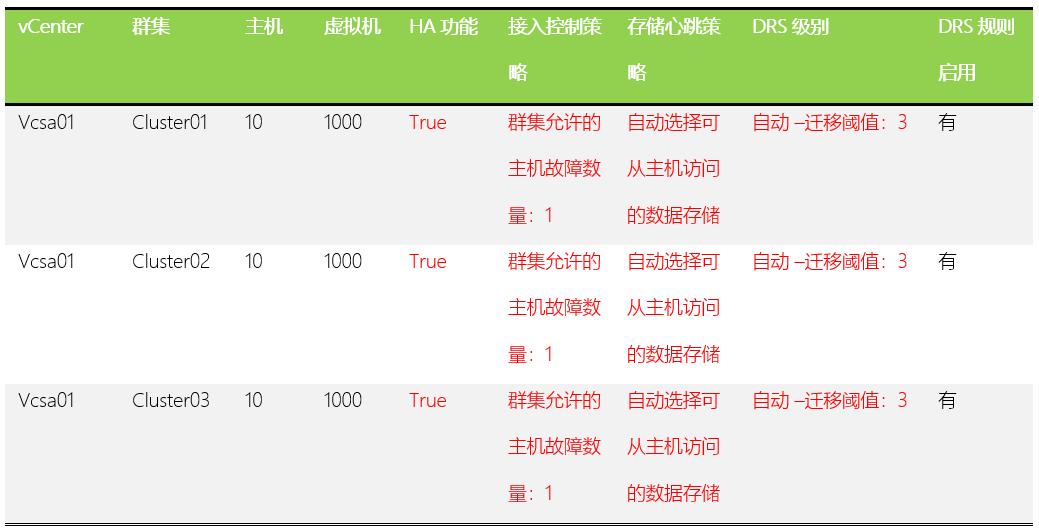
群集关键配置信息表
上表红色字体部分为需要引起注意的内容,具体影响可参考有关vSphere HA高可用部分内容。
从管理、性能和容量角度而言比较合适。控制群集中在线主机的数量,具体值参考对应的vSphere最高配置指导。
4.2.5 群集合规性
群集合规性检查,旨在为vSphere群集主机的一致性配置进行验证。群集作为虚拟化平台的一个资源集合,为上层虚拟机提供资源分配和管理。
群集内物理主机计算、网络、存储和配置参数的一致性,将确保上层虚拟机提供标准规范的服务和性能,对群集上层虚拟机起到关键作用。
4.2.6 群集CPU与Memory使用情况
群集资源使用情况应当有规律可循和计划内的资源使用,从群集资源整体利用率角度观察,群集内存利用率需要注意和考虑扩容外,CPU的资源使用情况良好。
根据VMware最佳实践建议,群集Memory与CPU利用率应控制在80%以下。
4.2.7 群集资源超载情况
VMware vSphere的CPU与内存资源允许超额分配使用,只要实际利用率控制在物理资源范围以内。实际环境当中资源超额分配的比例越大,对平台存在的风险则越大。在日常运维过程中需要观察实施的分配与使用情况,以有效的控制资源超额分配带来的风险。
根据VMware最佳实践建议,群集资源超额分配比例应控制在CPU 400%和内存 120%以内相对合理。
4.2.8 群集虚拟机电源状况
群集虚拟机电源情况主要关注在,资源的申请与回收方面。较长时间不启动的虚拟机,应当考虑回收。暂停状态的虚拟机因其内存资源暂存在存储当中,随时有可能根据业务需要进行恢复。暂停和长时间关闭状态虚拟机的资源,应当按照生产虚拟机进行置备。
4.2.9 群集内存压缩情况
群集内存压缩指标,主要用于考量群集内存资源的负载指标之一。当群集主机的物理内存出现紧张时,VMware vSphere ESXi主机会启用一系列保护机制,对虚拟机业务的资源调度和稳定运行提供保障。群集内存压缩仅当VMware vSphere ESXi主机内存紧张和不足的情况下才会触发。
建议加强对该群集的内存利用率的监控,并与业务需求部门探讨业务需求,以确认是否需要进行硬件扩容和资源调整。
4.2.10 虚拟机vCPU分布
虚拟机的vCPU分布主要用于分析,虚拟化平台虚拟机资源分配趋势和模型,这些数据还有助于指导资源优化和回收。
根据VMware最佳实践建议,虚拟机vCPU应按照业务的真实需求进行分配,初始配置也应尽可能少的分配,以提供更好的性能和管理;
4.2.11 虚拟机操作系统统计
虚拟机操作系统使用模型统计,有助于我们更好的了解企业内部IT系统建设情况、增长趋势和管理。相同的虚拟机操作系统运行在同一vSphere ESXi主机时,可利用VMware vSphere独有的内存页共享技术,达到内存节省的效果。以及在虚拟机备份数据进行消重时,达到最佳效果。可梳理当前数据中心虚拟化平台虚拟机操作系统分布情况。
4.2.12 单个数据存储的虚拟机密度
数据存储实际上为存储设备划分的逻辑单元号(LUN),单个LUN在存储中对应到同等大小的实际硬盘。因此,单个数据存储承载的虚拟机能力,取决于磁盘的空间和性能,以及存储控制器的能力。目前,不计算每台主机自带的硬盘设备外,通过存储设备为虚拟化平台主机分配的LUN数量。承载虚拟机数量较多需要关注的。
根据VMware最佳实践建议,通常共享存储分配的单个数据存储承载的虚拟机数量建议控制在20台和20ms延时以内,具体环境可根据虚拟机负载和存储性能而决定。
4.2.13 存储部署情况
存储设备在提供给VMware vSphere虚拟化平台管理,VMware vSphere在为虚拟机分配虚拟磁盘空间期间,可以利用Thin Provision(瘦置备)功能,这将在虚拟化平台可以充分和灵活的分配存储空间,但意味着存储空间也可以超额分配使用。一旦瘦置备分配的比例过大或瘦置备分配的虚拟磁盘空间增长速度过快,都会给虚拟化平台带来风险。
评估数据存储中Thin Provision对数据存储的影响。
4.2.14 数据存储Zone分配
通过在光纤交换机配置Zone实现ESXi主机到存储的访问控制,不同机房间的ESXi主机与存储均能相互访问。虚拟化平台存储与主机按资源1:1分布。
5 报告内容
报告内容清单至少应 包括以下内容:
5.1 巡检背景
5.2 巡检清单
检查涉及客户数据中心基础架构的设备和对象,检查清单内容如下:
5.2.1 vCenter Server
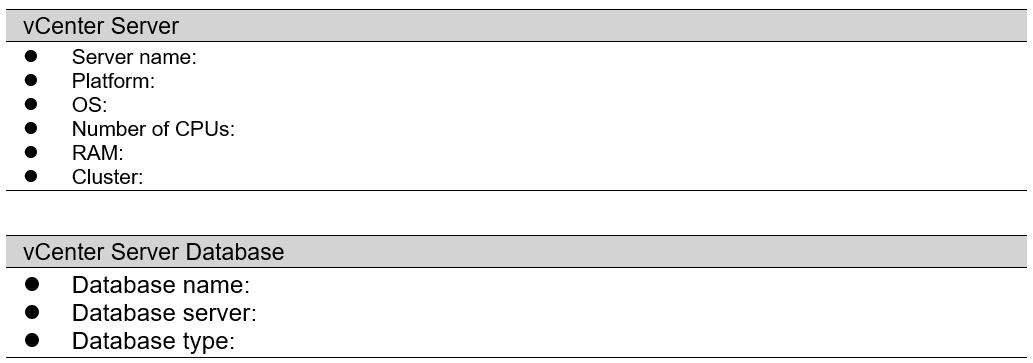
vCenter Server巡检情况
5.2.2 Virtual Data Center
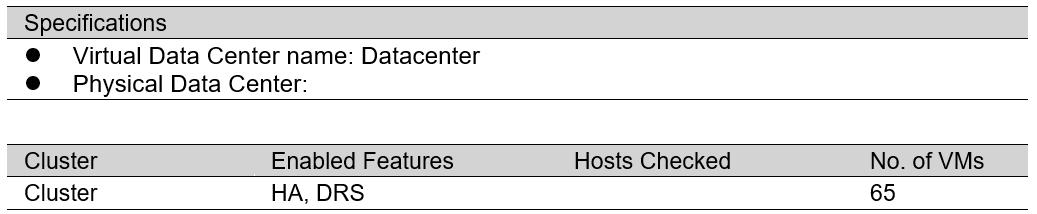
VDC群集巡检情况
5.2.3 Host Configuration
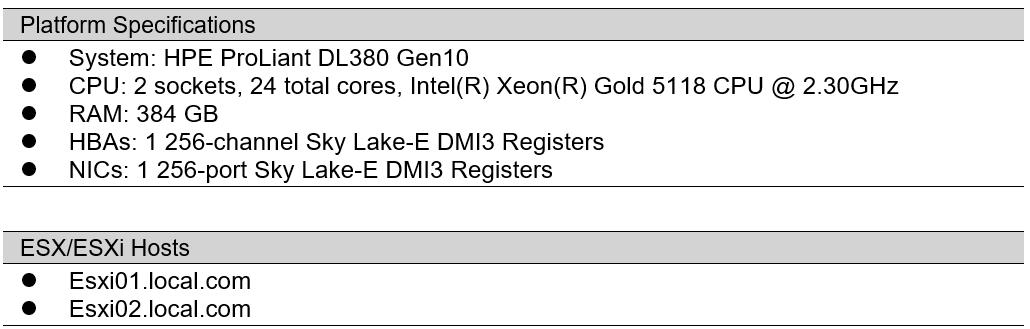
分类主机配置情况表
5.2.4 Networking Configuration
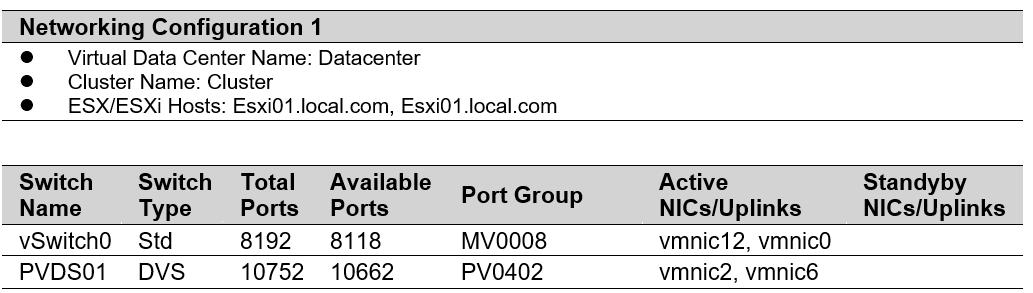
Network配置
5.2.5 Storage Configuration
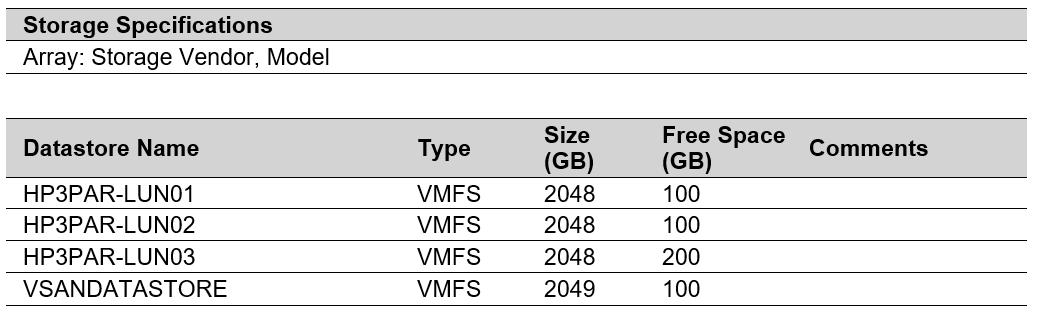
存储配置
5.2.6 Update Manager
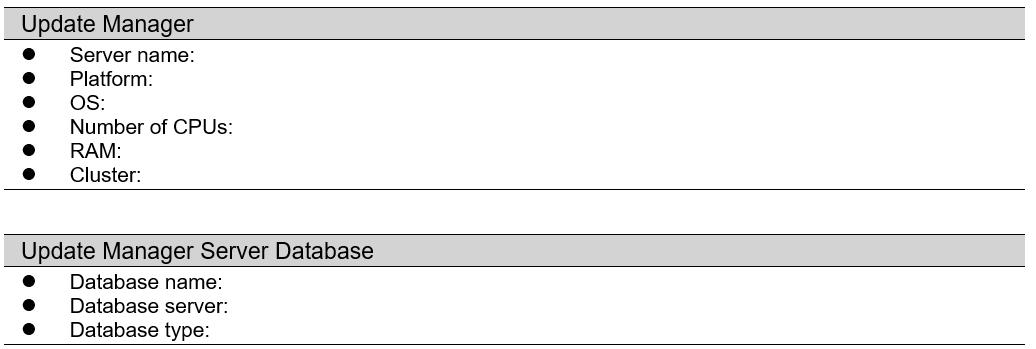
VUM配置
5.3 结果汇总
参考4.1项结果汇总。
5.4 虚拟化平台运行现状
虚拟化平台运行现状可包括:
通过RV Tools收集当前环境中的基础配置、运行数据、网络、存储等高可用路径链路配置,容量数据等。
VHA收集分析平台架构,
5.4.1 ESXi
描述关于ESXi的问题汇总,如:

ESXi问题汇总表
罗列出每个问题的详细巡检结果及处置建议和防范:
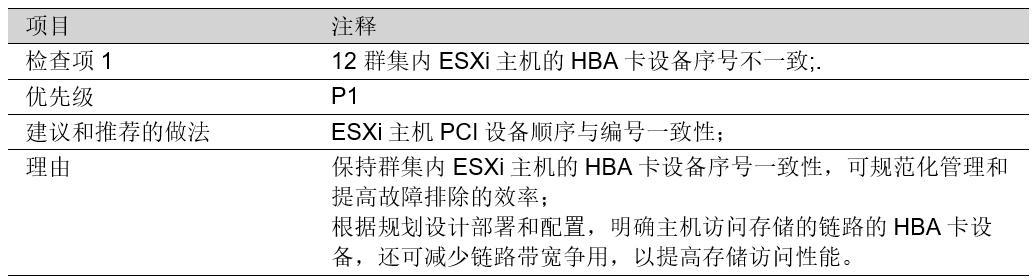
ESXi问题结果详情
5.4.2 数据中心
略
5.4.3 网络
略
5.4.4 存储
略
5.4.5 平台安全
略
5.4.6 虚拟机
略
5.5 技术建议
梳理罗列出当前巡检结果中引用到的参考技术建议,格式如下:
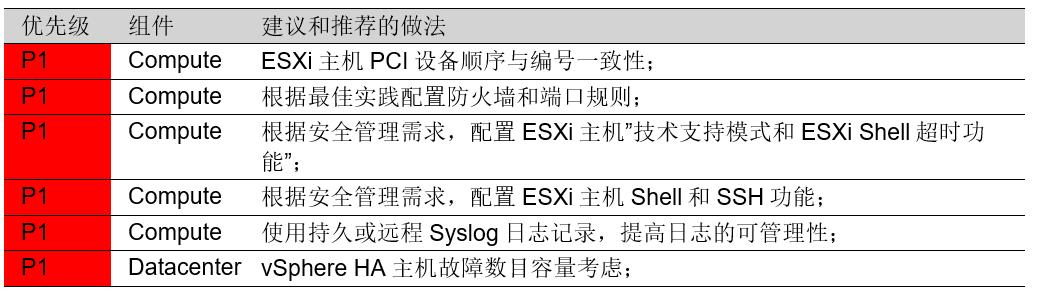
5.6 历史遗留问题归档
由于各种客观原因导致现场发现的风险和隐患问题无法及时处理,需要归档总结,以便侯查。
格式自定。
6 参考资料
6.1 最佳实践参考
VMware vCenter 6.7
6.1.1 Component: Compute
CO-001 Deploy VMware ESXi in compliance with all configuration maximums as documented in the most current VMware vSphere Configuration Maximums document.
CO-002 Verify that all hardware in the system is on the VMware Compatibility Guide for ESXi.
CO-003 Verify that hardware meets the optimal configuration supported by ESXi.
CO-004 Check CPU compatibility for VMware vSphere vMotion and VMware vSphere Fault Tolerance.
CO-005 Avoid unnecessary changes to advanced parameter settings.
CO-006 Maintain a similar version of ESXi within a cluster.
CO-007 Avoid using third-party agents on the ESXi host.
CO-008 Place host devices in a consistent order and location.
CO-009 Use persistent and remote syslog logging to improve manageability.
CO-010 Disconnect or disable unused or unnecessary physical hardware devices (COM and LPT ports, USB and storage controllers, CD/DVD/floppy drives, and NICs).
CO-011 Manage CPU oversubscription. Verify that the total CPU resources needed by virtual machines do not exceed the CPU capacity of the host.
CO-012 Monitor the ESXi hosts to verify that the CPU is not saturated or running with a sustained high CPU load.
CO-013 Check virtual machines to verify that CPU ready is less than 2000 ms.
CO-014 Confirm that hardware assisted virtualization features are enabled if the CPUs support them.
CO-015 Confirm that you are running the latest version of the BIOS available for your ESXi servers.
CO-016 Verify that the BIOS is set to enable all CPU sockets, and enable all cores in each socket.
CO-017 Enable Turbo Mode in the BIOS if your processors support it.
CO-018 Check the active Swap in rate of virtual machines to verify that it is not greater than 0 at any point in the measurement period.
CO-019 Confirm that non-uniform memory access (NUMA) is enabled for NUMA-capable systems.
CO-020 Consider enabling hyperthreading if applicable and if the CPU and BIOS support it.
CO-021 Use Host Profiles to ensure a consistent configuration across ESXi hosts.
CO-022 Review ESXi hosts for driver consistency between hosts in a cluster.
6.1.2 Component: Data Center
DC-001 Deploy vCenter Server in compliance with all configuration maximums as documented in the most current vSphere Configuration Maximums document.
DC-002 Deploy the VMware Platform Services Controller and vCenter Server Services in a configuration that VMware recommends.
DC-003 Use a consistent naming convention for all virtual data center objects.
DC-004 Maintain compatible and homogeneous (CPU, memory, and storage when using vSAN) hosts within a cluster to support the required functionality for vSphere vMotion, vSphere DRS, VMware vSphere Distributed Power Management, vSphere HA, and vSphere FT.
DC-005 Verify that the number of hosts in a cluster is within limits for the required functionality (HA, vSphere DRS, and vSphere DPM).
DC-006 Verify that vSphere HA settings allow sufficient capacity for vSphere DPM to power down hosts.
DC-007 Size VMware HA admission control policy considering the allowed host failures and available resources.
DC-008 Use reservations and limits selectively on clusters and resource pools that require them. Do not set reservations too high or limits too low.
DC-009 Verify that hardware meets the optimal configuration required by vCenter Server and add-ons.
DC-010 Verify that DNS is configured for forward, reverse, short, and long lookups.
DC-011 Use automatic mode for vSphere DRS, if possible, for optimal load balancing.
DC-012 Consider enabling vSphere DPM for clusters in which virtual machine demand varies greatly over time.
DC-013 Distribute vSphere FT VMs to multiple hosts, if the feature is in use.
DC-014 Verify that the number of vSphere FT-enabled virtual machines does not saturate the vSphere FT logging network.
DC-015 Verify that the hosts on which the primary and secondary FT-enabled virtual machines run are relatively closely matched (CPU make, model, frequency, and version/build/patches).
DC-016 Verify that power management settings (BIOS, ESX) that cause CPU scaling are consistent on hosts running primary and secondary FT-enabled virtual machines.
DC-017 Avoid making resource pools and virtual machines siblings in a hierarchy to avoid unexpected performance.
DC-018 Separate other applications from running on the same system as vCenter Server.
DC-019 Verify that the hardware running the vCenter Server database has sufficient resources, if applicable.
DC-020 Periodically perform database maintenance tasks on the vCenter Server database, if applicable.
DC-021 Configure the vCenter Server statistics to a level appropriate for use. VMware recommends level 1 or 2.
DC-022 vSphere Auto Deploy HA configuration practices.
DC-023 Tasks and Events Retention Policy set in the environment.
DC-024 Configure HA Isolation addresses as appropriate for the configuration.
DC-025 Validate that the supported scale for vCenter Server and the Platform Services Controller configuration is not exceeded.
6.1.3 Component: Licensing
LIC-001 Verify that adequate licenses are available for vCenter Server instances.
LIC-002 Verify that adequate CPU licenses are available for ESXi hosts.
LIC-003 Evaluation licenses should not be used in the environment.
LIC-004 Validate that proper licenses are installed for VMware vSAN clusters (if applicable).
6.1.4 Component: Network
NE-001 Deploy networking in compliance with all configuration maximums as documented in the most current vSphere Configuration Maximums document.
NE-002 Configure networking consistently across all hosts in a cluster.
NE-003 Verify that there is redundancy in networking paths and components to avoid single points of failure.
NE-004 Set up network redundancy for VMKernel network ports where required.
NE-005 If the physical switches that support PortFast (or equivalent), enable it on the physical switches that connect to the host.
NE-006 Distribute vmnics for a port group across different PCI buses for greater redundancy.
NE-007 Configure networks so that there is separation of traffic (physical or logical using VLANs).
NE-008 If beacon probing is used verify that there are at least three NICs.
NE-009 Confirm that vSphere vMotion traffic is on at least a 1-Gbps segregated network.
NE-010 Use static IP addresses for the management ESXi host management interface.
NE-011 Make sure that vSphere FT logging traffic is on at least a segregated 10-Gbps network.
NE-012 Single port 10-GbE network adapters should use PCIe x8 (or higher) or PCI-X 266. Dual port 10-GbE should use PCIe x16 or higher.
NE-013 Limit the number of installed NIC ports to recommended maximums.
NE-014 Minimize differences in the number of active NICs across hosts within a cluster.
NE-015 Check for dropped packets on vmnic objects.
NE-016 If jumbo frames are enabled, verify that jumbo frame support is enabled end-to-end on all intermediate devices so that there is no MTU mismatch.
NE-017 Configure NICs, physical switch speed, and duplex settings consistently.
NE-018 Avoid mixing NICs with different speeds and duplex settings on the same uplink for a port group/dvport group.
NE-019 Adjust load balancing settings from the default virtual port ID only if necessary.
NE-020 Verify that the network topology does not contain link oversubscription resulting in dropped packets.
NE-021 Use Network I/O Control (NetIOC) to prioritize traffic.
NE-022 Use shares instead of limits when using NIOC for bandwidth allocation. Do not impose limits unless addressing physical network capacity requirements.
NE-023 If Fault Tolerance is used, set NetIOC Fault Tolerance resource pool shares to High.
NE-024 Use Distributed Virtual Port Groups to apply policies to traffic flow types and to provide Rx (receive) bandwidth controls through the use of Traffic Shaping.
NE-025 Configure network appropriately when VMware vSphere Auto Deploy is used.
NE-026 Verify latency between vCenter Server and other network components.
6.1.5 Component: Security
SEC-001 Confirm integrated Windows authentication is configured when using Active Directory identity sources.
SEC-002 Confirm that time is synchronized on the SSO Server and on any server that connects to the SSO server.
SEC-003 Record the Single Sign-On administrator password in a safe place.
SEC-004 Avoid using local operating system users with vCenter Single Sign-On.
SEC-005 Set the vCenter Single Sign-On default domain to the identity source which is most frequently used.
SEC-006 Set the Single Sign-On password and lockout policies per customer security requirements.
SEC-007 Add only the necessary identity sources to the SSO server.
SEC-008 Set the base domain name for users and groups accordingly in Single Sign-On when using LDAP or OpenLDAP identity sources.
SEC-009 Limit remote access to hosts by root.
SEC-010 Configure firewall rules and ports according to best practices.
SEC-011 Configure VMware vSphere ESXi Shell and SSH access per manageability requirements.
SEC-012 Enable the ESXi Shell timeout feature and configure it per customer security requirements.
SEC-013 Keep current with the latest VMware product versions and patches.
SEC-014 Use vCenter Server roles, groups, and permissions to provide appropriate access and authorization to the virtual infrastructure. Avoid using Windows built-in groups such as the Administrators group.
SEC-015 Use Active Directory for local user authentication to ESXi Hosts.
SEC-016 Change port group security default settings for Forged Transmits, Promiscuous Mode, and MAC Address Changes to Reject unless required.
SEC-017 Enable bidirectional CHAP authentication for iSCSI traffic so that CHAP authentication secrets are unique.
SEC-018 Configure Management network Traffic on an isolated network.
SEC-019 Validate that copy/paste between the guest operating system and the remote console is disabled.
SEC-020 Verify that VMware isolation settings have not been disabled.
SEC-021 Limit sharing console connections if there are security concerns.
SEC-022 For additional security for NFS v4.1 shares, configure Kerberos authentication.
SEC-023 VMware Certificate Authority should be configured as a subordinate CA in the environment for additional security.
SEC-024 Configure Encrypted vSphere vMotion if the organization policy requires it.
6.1.6 Component: Storage
ST-001 Consult with the storage vendor for recommendations for use with the storage device in the environment.
ST-002 Deploy storage in compliance with all configuration maximums as documented in the most current vSphere Configuration Maximums document.
ST-003 Use shared storage for virtual machines instead of local storage.
ST-004 Zone Fibre Channel LUNs properly to the appropriate devices for vSphere vMotion compatibility, security, and shared services.
ST-005 Minimize differences in datastores visible across hosts within the same cluster or vSphere vMotion scope.
ST-006 Use the appropriate policy based on the array being used (MRU, Fixed, Round Robin, and so on).
ST-007 Manage the differences in the number of storage paths between hosts including maximum paths per host.
ST-008 Verify that there is redundancy in storage paths and components to avoid single points of failure.
ST-009 Check that storage LUNs are not overloaded by verifying that the Command Aborts for all datastores is 0.
ST-010 Verify that Physical Device Read/Write Latency average is less than approximately 10 ms and peak is less than approximately 20 ms for all virtual disks.
ST-011 Allocate space on shared datastores for templates and media/ISOs separately from datastores for virtual machines.
ST-012 Size datastores appropriately for the environment.
ST-013 Perform administrative tasks that require excessive VMFS metadata updates during off-peak hours, if possible. If ATS Mode is available it should be used.
ST-014 Configure NFS and iSCSI storage traffic for performance and security.
ST-015 Align VMFS partitions.
ST-016 Verify the queue depth of the HBA and the max outstanding disk requests per virtual machine parameter according to storage vendor best practices.
ST-017 Spread I/O loads over the available paths to the storage (across multiple HBAs and storage processors).
ST-018 Choose placement of data disks and swap files on LUNs appropriately for virtual machines.
ST-019 Prior to performing a VMware vSphere Storage vMotion operation, verify that there is sufficient bandwidth between the ESXi host running the virtual machine and both source and destination storage.
ST-020 Consider scheduling vSphere Storage vMotion operations during times of low storage activity, when available storage bandwidth is highest and when the workload in the virtual machine being moved is least active.
ST-021 Use Storage I/O Control (SIOC) to prioritize high importance virtual machine traffic.
ST-022 Modify the default storage congestion threshold for Storage I/O Control based on disk type.
ST-023 To maximize the fairness benefit from SIOC, avoid introducing non-SIOC-aware load on the storage.
ST-024 Optimize storage utilization through the datastore cluster and VMware vSphere Storage DRS features.
ST-025 When booting from SAN, verify that the datastore is masked and zoned to that particular ESXi host and not shared with other hosts.
ST-026 Keep the IP storage network physically separate from other traffic.
ST-027 Validate and optimize Non-Volatile Memory Express (NVMe) device performance.
ST-028 Check ESXi Hosts for storage plugin version and consistency.
ST-029 Check for consistent VAAI settings on ESXi Hosts in a cluster.
6.1.7 Component: Virtual Machines
VM-001 Use NTP, Windows Time Service, or another timekeeping utility for all ESXi Hosts and virtual machines.
VM-002 Use the correct virtual SCSI hardware for the operating system.
VM-003 Verify that virtual machines meet the requirements for vSphere vMotion.
VM-004 Do not specify CPU affinity rules unless needed.
VM-005 Use the latest version of VMXNET that is supported by the guest operating system.
VM-006 Configure the operating system with the appropriate HAL (UP or SMP) to match the number of vCPUs.
VM-007 Select the correct guest operating system type in the virtual machine configuration to match the guest operating system.
VM-008 Disable screen savers and window animations.
VM-009 Turn on display hardware acceleration for Windows virtual machines.
VM-010 Verify that the file system partitions within the guest operating system are aligned.
VM-011 Use as few vCPUs as possible to avoid over allocation of resources.
VM-012 Use the default monitor mode chosen by the Virtual Machine Monitor unless it is necessary to change it.
VM-013 Check vCPU for saturation or sustained high utilization.
VM-014 Allocate optimal memory to virtual machines, enough to minimize guest OS swapping, but not so much that unused memory is wasted.
VM-015 Configure the guest operating system with sufficient swap space.
VM-016 Use reservations and limits selectively on virtual machines.
VM-017 Use paravirtualized SCSI (PVSCSI) with a supported guest OS where additional performance is needed.
VM-018 Verify that VMware Tools is installed, running, and up to date for running virtual machines.
VM-019 Allocate only as much virtual hardware as required for each virtual machine. Disable any unused or unnecessary or unauthorized virtual hardware devices.
VM-020 Consider the implications and use the latest virtual hardware version to take advantage of additional capabilities, when appropriate.
VM-021 Limit use of snapshots, and when using snapshots limit them to short-term use.
VM-022 Consider using a 64-bit guest operating system to improve performance, if applicable.
VM-023 Consider setting the memory reservation value for performance-sensitive Java-based virtual machines (JVMs) to the operating system required memory plus the total JVM heap size.
VM-024 Validate that there are no orphaned or invalid virtual machines in the inventory.
VM-025 If virtual machine encryption is used, validate that the ESXi host processors support AES-NI, for improved performance.
VM-026 Validate the schedule for recurring activities such as virus scans and backups is set appropriately to business policy.
6.1.8 Component: vSAN
VSAN-001 Review the Cluster section of the vSAN Health interface.
VSAN-002 Review the Data section of the vSAN Health interface.
VSAN-003 Review the Encryption section of the vSAN Health interface.
VSAN-004 Review the Hardware Compatibility section of the vSAN Health interface.
VSAN-005 Review the Hyper-converged Cluster Configuration Compliance section of the vSAN Health interface
VSAN-006 Review the Limits section of the of the vSAN Health interface.
VSAN-007 Review the Network section of the vSAN Health interface.
VSAN-008 Review the Online Health section of the vSAN Health interface.
VSAN-009 Review the Performance Service section of the vSAN Health interface.
VSAN-010 Review the Physical Disk section of the vSAN Health interface.
VSAN-011 Review the Stretched Cluster section of the vSAN Health interface.
VSAN-012 Review the vSAN Build Recommendation section of the vSAN Health interface.
VSAN-013 Review the vSAN iSCSI Target Service section of the vSAN Health interface.
VSAN-014 Verify that you are using high performing SSDs for best performance.
VSAN-015 Use 10-Gigabit networks with vSAN.
VSAN-016 Fault domains should be used to protect against a rack or chassis failure in the environment.
VSAN-017 Verify that you have configured storage policies correctly.
VSAN-018 CPU contention can adversely affect vSAN.
VSAN-019 Separate VLANs for vSAN traffic.
VSAN-020 Jumbo frames can increase vSAN performance
VSAN-021 Avoid using Flash read cache policy reservations unless absolutely necessary.
6.2 vSphere虚拟化平台系统安全配置要求
本配置要求共包含ESXi安全、VCSA安全、Web Client安全、vNetwork安全、VUM安全、虚拟机增强安全六个方面,共含配置要求58项。
6.2.1 ESXi安全(ESXi Security)
VSphere-ES-01 确保密码强度及复杂度
VSphere-ES-02配置VMDK 文件彻底清除策略
VSphere-ES-03模板镜像文件完整性保护
VSphere-ES-04妥善配置ESXi防火墙
VSphere-ES-05删除SSH认证keys文件
VSphere-ES-06不允许安装未进行安全签名的VIB
VSphere-ES-07对网络文件复制启用SSL
VSphere-ES-08禁用默认的证书
VSphere-ES-09禁止非root账户拥有CIM管理员权限
VSphere-ES-10设置shell超时退出策略
VSphere-ES-11关闭dvfilter network api调用
VSphere-ES-12依据中心主推版本及补丁进行安装、升级
VSphere-ES-13配置NTP服务
VSphere-ES-14安全配置SNMP协议
VSphere-ES-15禁用Managed Object Browser
VSphere-ES-16集中保存core dumps日志
VSphere-ES-17创建非root的管理账户
VSphere-ES-18关闭ESXi主机与互联网的网络通道
6.2.2 虚拟机增强安全(Vitrul Enhance Security)
虚拟机安全部分,首先根据虚拟机操作系统类型参照前文相应的操作系统安全配置要求加固,而后根据虚拟化进行如下的增强安全配置。
VSphere-VES-01 关闭Fault Tolerance功能
VSphere-VES-02 防止虚机抢占过多资源
VSphere-VES-03关闭虚拟机工具的自动安装功能
VSphere-VES-04关闭复制/粘贴功能
VSphere-VES-05关闭HGFS文件传输功能
VSphere-VES-06关闭通过VMCI进行的虚机间通讯功能
VSphere-VES-07禁用非必须的虚机特有功能
VSphere-VES-08限制远程共享会话的最大连接数为1
VSphere-VES-09利用统一可信模板进行虚机的部署
VSphere-VES-10使用安全运维管理系统作为日常运维登录渠道
VSphere-VES-11 关闭虚拟磁盘的收缩功能
VSphere-VES-12应配置为“独立持久”磁盘
VSphere-VES-13关闭虚拟监控管理功能
VSphere-VES-14 禁用非必须的虚机功能
VSphere-VES-15禁用VIX模块从虚机对外发送消息的功能
VSphere-VES-16断开非必须的外置设备
VSphere-VES-17限制虚机日志文件数目上限及大小
VSphere-VES-18限制虚机上的VMX文件大小
VSphere-VES-19防止非授权的移除、连接和调整设备
VSphere-VES-20关闭从物理宿主机发送信息到虚机的功能
VSphere-VES-22关闭非必须的dvfilter network API访问verify-network-filter
6.2.3 VCSA安全(VCSA Security)
VCSA从本质上而言是Linux操作系统,其基础配置遵循前述系统安全配置要求,如下的要求为VCSA的增强要求,如有与前述系统安全配置冲突的地方,以如下要求为准。
VSphere-VCS-02确保VCenter Server数据库安全
VSphere-VCS-02配置时钟同步服务
6.2.4 Web Client安全(Web Client Security)
VSphere-WCS-01 设置有效的webclient空闲退出时间
6.2.5 vNetwork安全(vNetwork Security)
VSphere-VNS-01开启MAC防护相关配置
VSphere-VNS-02虚拟/物理交换机VLAN号唯一
VSphere-VNS-03vSwitch和VLans的ID唯一标识
VSphere-VNS-04 标明虚拟端口组功能
VSphere-VNS-05标明虚拟交换机功能
VSphere-VNS-06仅有授权的网络管理员能访问对应的虚拟化网络组件
VSphere-VNS-07虚拟端口组不能配置为native VLAN
VSphere-VNS-08虚拟端口组不得设置为VLAN 4095
VSphere-VNS-09 有效管理虚拟交换机VLAN号分配
6.2.6 VUM安全(vCenter Update Manager Security)
首先根据VUM操作系统类型参照前文的Windows2008系统安全配置要求加固,而后根据虚拟化进行如下的增强安全配置。
VSphere-VUS-01妥善设置Update Manager数据库用户的权限
VSphere-VUS-02限制用户登录Update Manager系统
VSphere-VUS-03避免利用Update Manager管理自身所在的虚机和vCenter Server
VSphere-VUS-04配置时钟同步服务
VSphere-VUS-05关闭Update Manager系统与外界版本库的网络通道
6.3 客户日常管理操作标准规范
其他客户日常管理操作标准规范。